Disabling, removing and resetting a user
Each row on Users ends in a set of icons for the things you can do to that person's account: end their sessions, make them choose a new password, clear their MFA, switch the account off or on, or remove it.
- The Access Control app in your top bar.
- These permissions: Identity & Users · User - Execute, Identity & Users · User - Update, Identity & Users · User - Delete.
- Identity & Users · User - Execute covers Revoke Sessions, Password Reset and Reset MFA; Identity & Users · User - Update covers Disable and Activate; Identity & Users · User - Delete covers Remove. Every icon shows whatever your role holds.
If Access Control isn't in your top bar, your role can't view it or your plan doesn't include it. Ask a workspace administrator, or see Permissions and module visibility.
Steps
Find the person
On Users, search or filter until their row is on screen. See Managing users.

The top bar of Elie with the module icons. The green shield icon is ringed and its tooltip reads Access Control. EnlargeChoose the action
Point at an icon under ACTIONS to see its name. An ACTIVE row offers Revoke Sessions, Password Reset, Reset MFA, Disable and Remove. A DISABLED row offers Activate and Remove. User Details has its own Actions list: everything except Activate, and no Disable for someone already disabled.
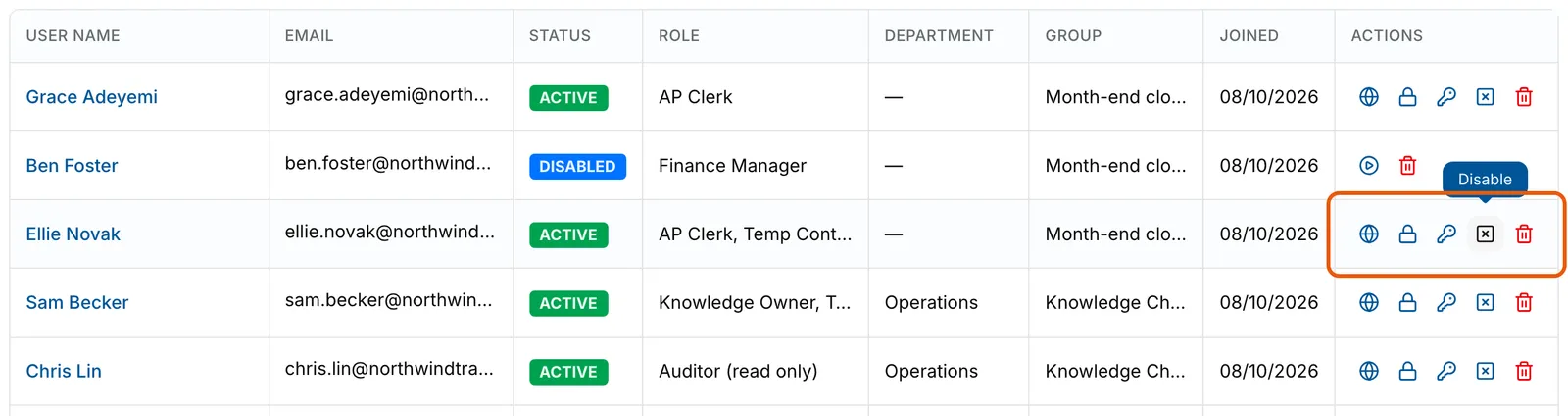
The first five rows of Users. The ACTIONS cell on Ellie Novak's ACTIVE row is ringed, with the pointer on its fourth icon and the tooltip Disable. Ben Foster's DISABLED row above offers only Activate and Remove. EnlargeConfirm it
Revoke Sessions, Disable, Activate and Remove ask first. Select Yes, Revoke, Yes, Disable, Yes, Activate or Yes, Remove, or No, Cancel to back out. Password Reset and Reset MFA run as soon as you select them.
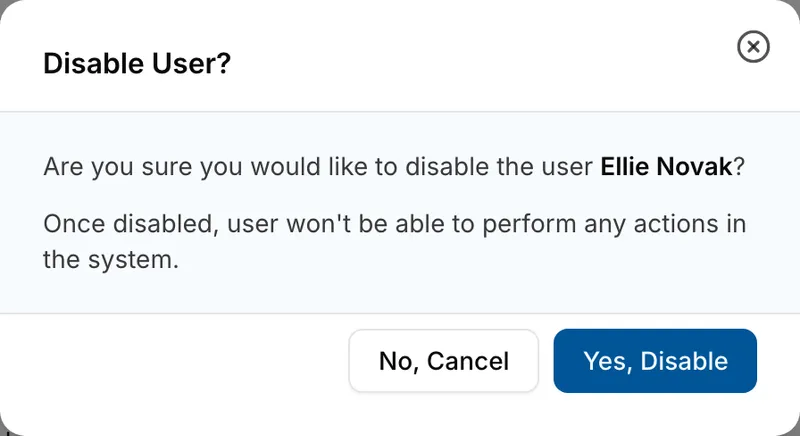
The Disable User? dialog asking whether to disable the user Ellie Novak, explaining that a disabled user cannot perform any actions, with No, Cancel and Yes, Disable. Check the result
A message confirms each action, and STATUS changes on the row for Disable and Activate. After Password Reset, a dialog confirms the request; select Close.


What each action does
| Action | What happens |
|---|---|
| Revoke Sessions | Signs the person out of every browser and device. They can sign straight back in. |
| Password Reset | They must choose a new password the next time they sign in. Their current password keeps working until then, and they stay signed in. |
| Reset MFA | Removes their registered MFA devices. If your workspace requires MFA, they set it up again at their next sign-in. |
| Disable | Ends their sessions and stops them signing in. The account, its roles and its history stay. |
| Activate | Lets a disabled person sign in again. |
| Remove | Ends their sessions, takes them out of every department and group, and removes them from Users. You cannot bring the account back from here. |
What success looks like
- One of these messages appears: Sessions revoked successfully!, MFA reset successfully!, User disabled successfully!, User activated successfully! or User removed successfully!
- Password Reset opens Password change requested successfully!
- A removed person no longer appears on Users, and their past actions stay in Audit Logs.
There is no restore for a removed account in Access Control. If you only want to stop someone signing in for a while, use Disable instead.
If something goes wrong
| Symptom | Likely cause | What to do |
|---|---|---|
| The page is replaced by 403 and Access Forbidden. | Your role lacks the permission for that action. The icons show regardless. | Select Go Back and ask an administrator. See Permissions. |
| An error message appears and the confirmation stays open. | The request failed before it changed the account. | Close it, select Refresh, check the row's STATUS, and try again. |
| A disabled person has no Activate in User Details. | The panel never offers it. | Use the Activate icon on their row instead. |
| You need to bring back someone you removed. | Removal cannot be undone from Access Control. | Invite them again; see Inviting a user. |
Next
- Managing users - finding someone and editing their details.
- Reading sign-in and access history - who signed in and whose session ended.
- Inviting a user - adding someone new.