Reading sign-in and access history
Access & sign-in is the security service's own record of your workspace: sign-ins, sessions ended, and changes to accounts, roles and invitations. It shows details the other tab leaves out, such as the IP address and browser behind an event, where they were recorded.
- The Audit Logs app in your top bar.
- This permission: Audit Log · Events - List.
- To filter by person, your role must also be able to list users.
If Audit Logs isn't in your top bar, your role can't view it or your plan doesn't include it. Ask a workspace administrator, or see Permissions and module visibility.
Steps
Open the tab
In Audit Logs, select Access & sign-in under the heading. A note explains that this record is kept apart from the activity timeline, which is why the toolbar reads Paged separately from Activity.
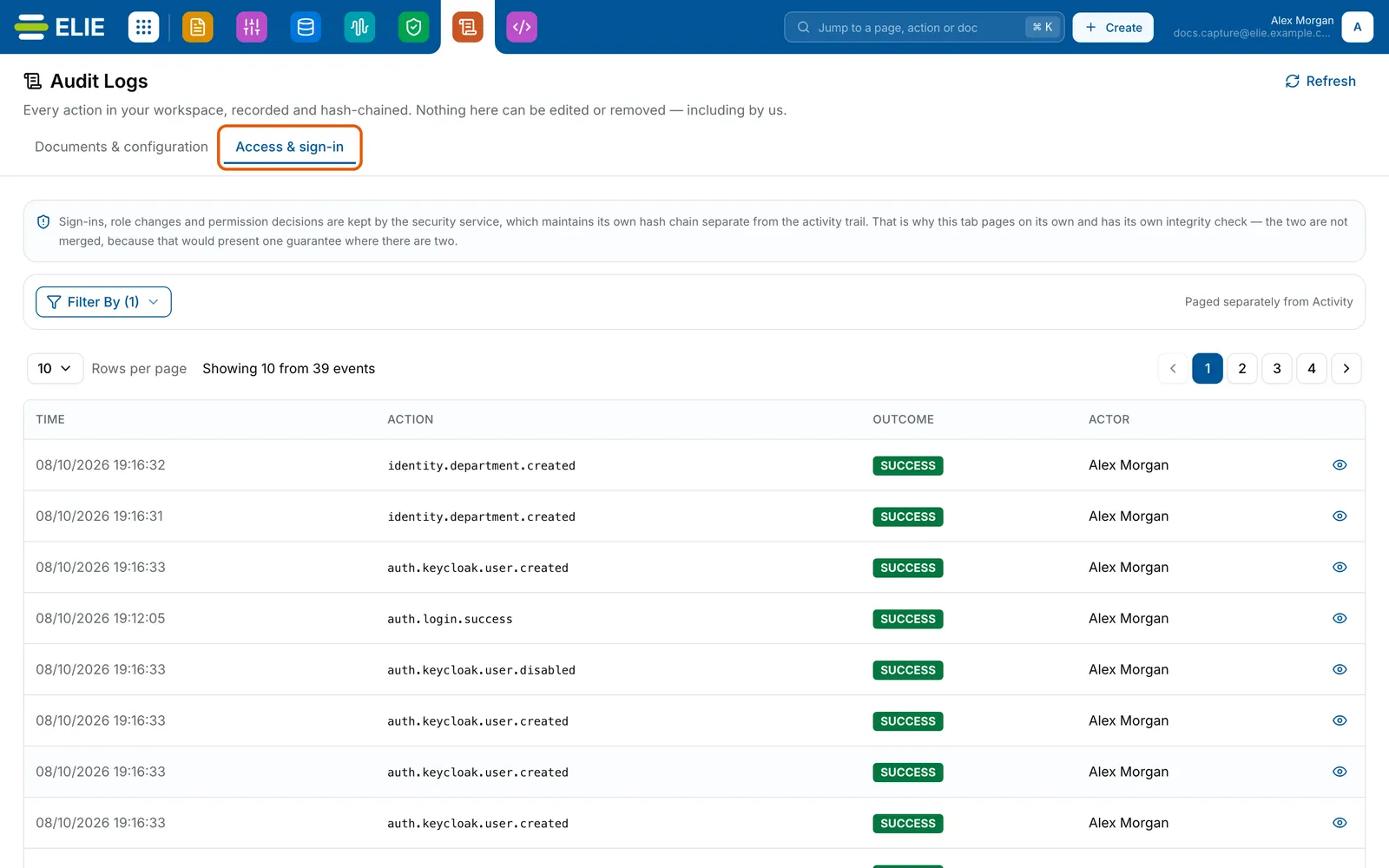
Audit Logs with the Access & sign-in tab ringed: the note that the security service keeps its own chain, Filter By (1), Paged separately from Activity, and rows of TIME, ACTION, a SUCCESS badge and the ACTOR Alex Morgan. EnlargeNarrow it
Select Filter By. Person picks one colleague or Anyone. When offers the same presets as the other tab, or Custom range. Action takes a recorded action name, typed exactly as the ACTION column shows it, for example
auth.login.success. Select Apply.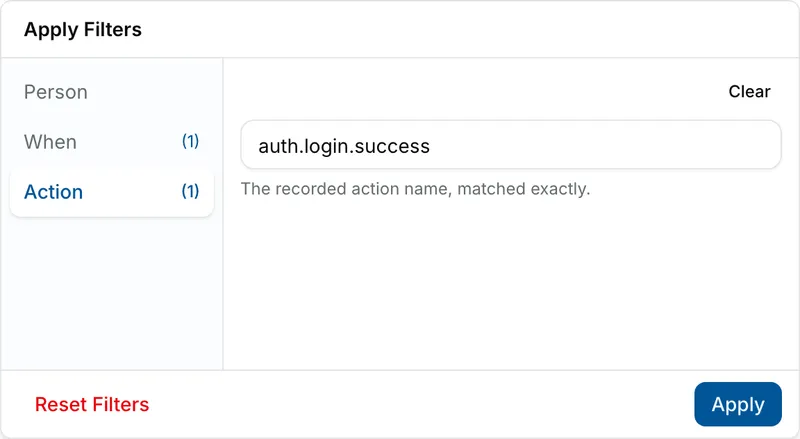
The Filter By panel on its Action section, with auth.login.success typed in and the hint The recorded action name, matched exactly. Person, When (1) and Action (1) are listed on the left. Read the rows
Each row shows TIME, the recorded ACTION, an OUTCOME badge and the ACTOR. Rows are not in time order, so narrow When to find a particular moment.
Open an event
Select Show details, the eye at the end of the row. It lists the Action, Outcome, Time and Sequence; the Actor's Name, Type and Email; the Target and Resource; the IP Address, User Agent and Correlation ID; any Metadata; and the event's Integrity fingerprints.
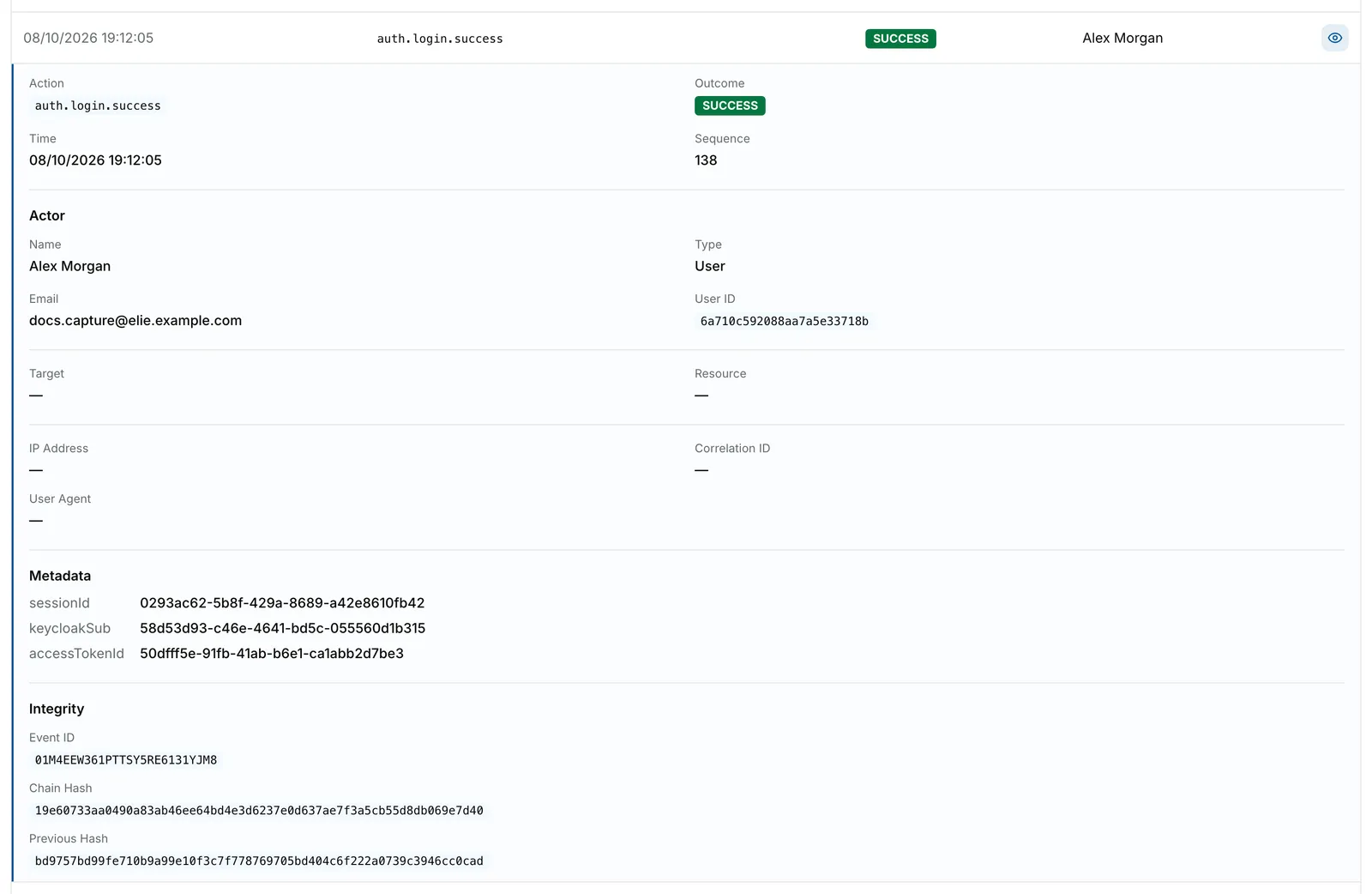
An auth.login.success event opened in place: Action, Outcome SUCCESS, Time and Sequence 138; the Actor Alex Morgan, a User, with email and user ID; Target, Resource, IP Address, Correlation ID and User Agent, each a dash; the Metadata session and token IDs; and the Integrity Event ID, Chain Hash and Previous Hash. EnlargeRefresh
Select Refresh at the top right of the page to pull in newer events. Paging and Rows per page sit above the list.


What success looks like
- The rows match your filter, and the badge on Filter By counts the terms you applied.
- An open event shows who acted and on what, plus the IP address and browser where they were recorded. A field with nothing recorded shows a dash.
Outcomes
| Outcome | What it means |
|---|---|
| SUCCESS | The action went through. |
| DENIED | It was refused, usually because the person's roles did not allow it. |
| ERROR | It did not complete. |
What you will find here and not on the other tab
Password and MFA resets, accounts disabled, enabled or removed, invitations resent or revoked,
and role changes all appear here under their recorded names, such as identity.user.disabled or
rbac.role.updated. Documents & configuration shows only a
curated set of these as plain sentences. Actions by Askelie staff are recorded without naming the
person.
If something goes wrong
| Symptom | Likely cause | What to do |
|---|---|---|
| An Action filter returns nothing. | The name must match exactly, including dots. | Copy it from the ACTION column of a row you can see. |
| ACTOR reads A user in your workspace. | The person could not be matched to a name, often because they were removed. | Open the event; User ID identifies them for support. |
| Person says the list of people could not be loaded. | Your role cannot list users. | Use Action or When instead, or ask for Identity & Users · User - List. |
| The page is replaced by 403 and Access Forbidden. | Your role lacks Audit Log · Events - List. | Ask a workspace administrator. |
Next
- Checking that audit records are unaltered - running Verify Integrity on this record.
- Reading your workspace activity - the Documents & configuration tab.
- Disabling, removing and resetting a user - the actions behind many of these rows.