Seeing and removing bindings
A binding links a connector to whatever uses it: an IntELIEDocs orchestrator, a knowledge base or a Voice IntELIEgence app. You create bindings in those modules. IntELIEKonnect shows them all in one place, which is where you go to clear a connector's bindings before removing it.
- The IntELIEKonnect app in your top bar.
- These permissions: IntELIEKonnect · Import - List, IntELIEKonnect · Export - List, IntELIEKonnect · Import - Delete, IntELIEKonnect · Export - Delete.
- List for a direction shows its bindings; Delete for that direction removes them. Nothing else needs to exist first.
If IntELIEKonnect isn't in your top bar, your role can't view it or your plan doesn't include it. Ask a workspace administrator, or see Permissions and module visibility.
Steps
Open the bindings
Select Connectors & Bind in IntELIEKonnect’s left rail for every binding in your organisation. For one connector only, open it and select its Bindings tab.
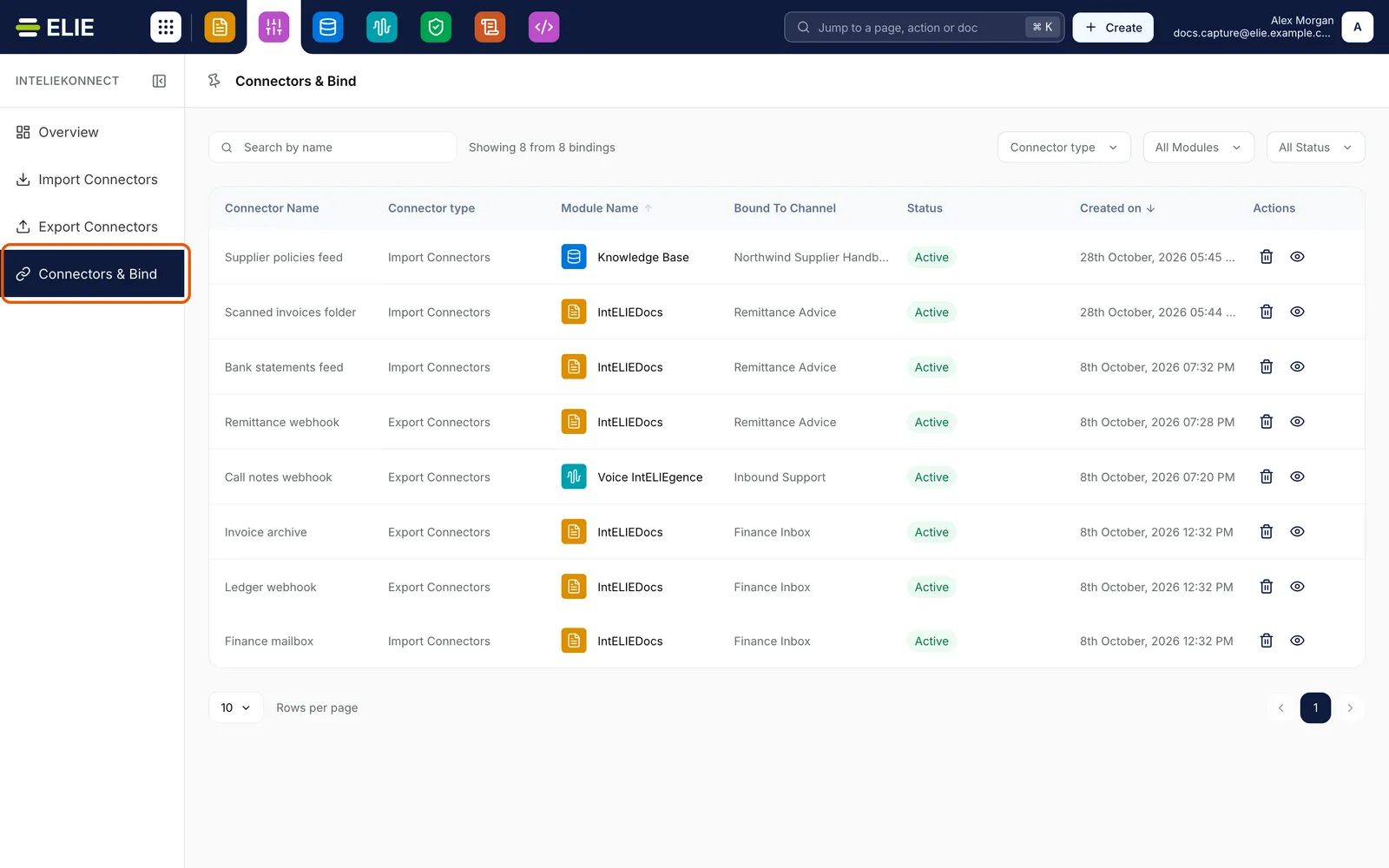
Connectors & Bind, ringed in the IntELIEKonnect rail, listing eight bindings with Connector Name, Connector type, Module Name, Bound To Channel, Status and Created on: Supplier policies feed bound to the knowledge base Northwind Supplier Handbook, Scanned invoices folder, Bank statements feed and Remittance webhook to Remittance Advice, Call notes webhook to the Voice IntELIEgence app Inbound Support, and Invoice archive, Ledger webhook and Finance mailbox to Finance Inbox, all Active. EnlargeFind the one you want
Each row shows Module Name, Bound To Channel (the orchestrator, knowledge base or app), Status and Created on; Connectors & Bind adds Connector Name and Connector type, which reads Import Connectors or Export Connectors. Search by name and the All Modules and All Status filters narrow the list. Select a name under Bound To Channel to open the page where that binding is managed.
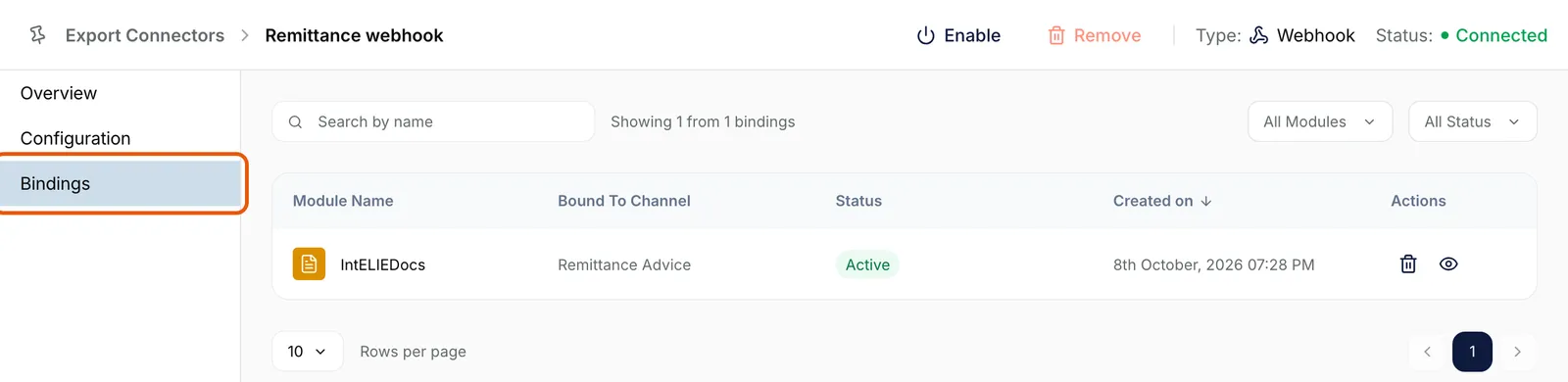
The Bindings tab of Remittance webhook, ringed in its tab list: one binding, IntELIEDocs bound to Remittance Advice, Active, with a trash icon and an eye icon under Actions. Search by name, All Modules and All Status sit above it. EnlargeRead its details
Select the eye icon (View) to open Binding details, with the module, the channel, the status, whether the binding is required and when it was made.
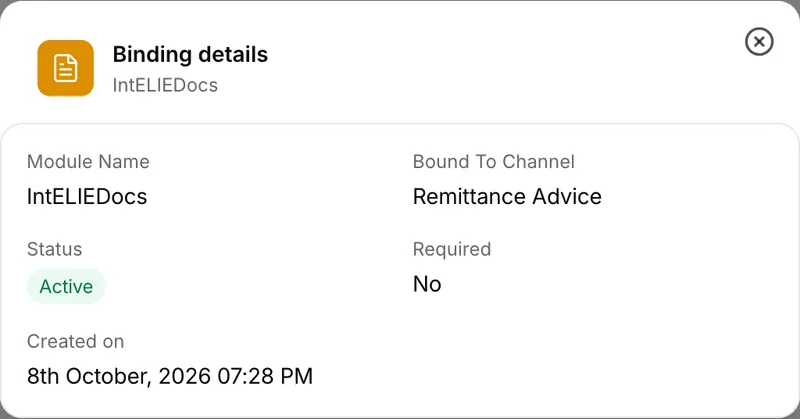
The Binding details dialog for IntELIEDocs: Module Name IntELIEDocs, Bound To Channel Remittance Advice, Status Active, Required No, and the date it was created. Remove it
Select the trash icon (Remove), then Yes, Remove in Remove Binding. The module stops receiving files through this connector straight away.


What Status means here
| Status | What it means |
|---|---|
| Active | The binding is switched on: the module shows Disconnect for it. |
| Inactive | The binding is switched off in the module (Connect), but kept. |
This is the binding's own status, not the connector's. A binding to a disabled connector still reads Active, though nothing flows through it until the connector is enabled again.
Adding a binding
There is no add button here. Bind a connector from the module that uses it, which is where a name under Bound To Channel takes you: an orchestrator's Import Channels or Export Channels, a knowledge base's sources, or a Voice IntELIEgence app's sources or export.
What success looks like
- The row disappears, and Active Bindings on the Overview Dashboard drops by one.
- With no bindings left, a connector's Remove is no longer greyed out.
If something goes wrong
| Symptom | Likely cause | What to do |
|---|---|---|
| Bound To Channel reads Unable to fetch name, with no link. | The orchestrator, knowledge base or app was deleted, or its module didn't answer. | Remove the binding if the target is gone. |
| Connector Name reads Unavailable connector. | The connector no longer exists. | Remove the binding. |
| No trash icon on a row. | Your role lacks Delete for that connector's direction. | Ask an administrator. |
| There is no Connector type filter. | You can list only one direction, so there is nothing to choose. | Nothing to fix. |
| No bindings yet, or This connector isn't bound to any module yet. | Nothing has been bound. | Bind it from the module, as above. |
Next
- Enabling, disabling and removing - removing a connector once its bindings are gone.
- Binding an import connector to an orchestrator - the most common binding.
- The Overview Dashboard - where Active Bindings is counted.