Finding and creating import connectors
An import connector is the doorway documents come in through. Everything starts on the Import Connectors list: find one, or add one with a name and a type. Credentials and schedules follow on its own tabs.
- The IntelieKonnect module visible in your left-hand navigation.
- These permissions: IntelieKonnect — List, IntelieKonnect — View, IntelieKonnect — Create.
- Nothing else need exist first — create one before any Smart Extract, Smart Class, Smart Queue or Smart Redact, and bind it later.
If IntelieKonnect isn't in your navigation, your role doesn't have visibility for it — ask a workspace administrator, or see Permissions and module visibility.
Finding one
On Home, select Intelie Konnect to land on Import Connectors. The left rail also holds Export Connectors; a connector is in one list only.

| Column | What it holds |
|---|---|
| NAME | Your name for it. |
| CONNECTOR TYPE | The system it talks to; fixed at creation. |
| STATUS | Draft, Initialised, Verification Pending, Verification Failed, Active or Disabled. |
| ENGAGEMENT STATUS | Do the credentials work: Connected or Not Connected. |
| CREATED ON | Creation date — the default sort. |
| ACTIONS | Row actions, including Delete. |
The two status columns are independent: a connector can be Active yet Not Connected.
Search by name matches names only. Filter By opens Apply Filters — tabs Connector Type, Status and Engagement Status, with Select All and Clear per tab and Reset Filters for all; nothing applies until you select Apply. Active filters read Filter By (2) with a count — check it before believing a connector has vanished. Sort By (Date) toggles Date and Name. Rows per page, the pager and the counter Showing 3 from 12 Connectors sit above it.
Creating one
Select Add Connector. New Connector opens with Add Basic Details and Select Connector Type.
Under Add Basic Details, enter a Name (2–100 characters) and a one-line Description (up to 250). Both required.

Add Basic Details — both fields are required. EnlargeUnder Select Connector Type, use Search by connector or auth type, or the group pills — All Connectors, Email, File Storage, Cloud Storage, Database, API and Accounting. A pill appears only when its group holds something.
One card per sign-in method: Email offers App Password and Graph API; SFTP Basic and SSH Key; SQL Database and MongoDB Basic and Connection String. Google Drive and Dropbox verify with Authenticate; Azure Blob Storage, Amazon S3, SFTP and the databases with Ping. The card fixes type *and* authentication method permanently — to change either, select Delete, confirm the Delete Connector dialog and start again.
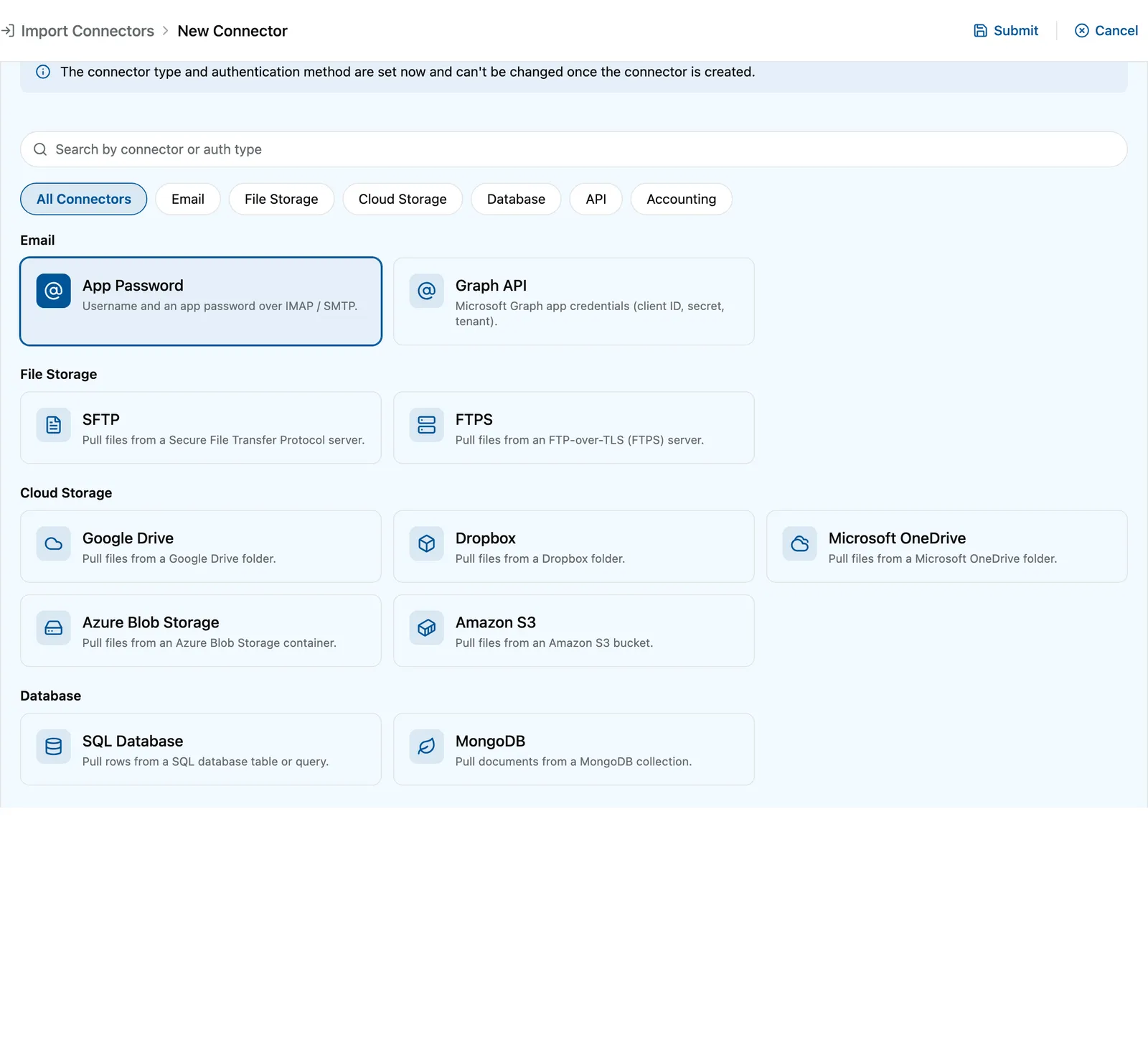
A selected card fixes the type and the sign-in method. EnlargeSelect Submit. Elie creates it as a Draft — nothing is fetched and the scheduler skips it, so finish it later.


What success looks like

- Saved as draft appears; you land on the connector's Overview tab, name in the breadcrumb.
- Connector Status reads Draft, Engagement Status Not Connected — expected; nothing is verified yet.
- The tab rail shows Overview, Configuration and Schedule Configs; the row is in Import Connectors.
If something goes wrong
| Symptom | Likely cause | What to do |
|---|---|---|
| An empty list reading "No Connectors found." | A filter excludes everything, or there are none yet. | Check the Filter By count, then Reset Filters. Yours may be an export connector — switch to Export Connectors. |
| Search by name finds nothing for a type you can see. | Search matches names only. | Use Filter By → Connector Type. |
| Submit is greyed out; the tooltip reads "Enter a name and description first." or "Select a connector type to submit." | A field is empty or over length, or no type card is selected. | Name 2–100, Description 1–250 (over it: "Maximum 250 characters allowed"), then select a card. |
| The picker says "No results found." | Nothing matches your text. | Clear Search by connector or auth type, select All Connectors. Still absent means it is unavailable for your workspace — contact support. |
| The page reads "Access Forbidden". | No visibility for IntelieKonnect. | Ask a workspace administrator — see Permissions and module visibility. |
Next
- The Configuration tab — credentials and file filters.
- Verify it, then enable it and add a schedule.
- Bind it to an orchestrator · Connector statuses