Configuring an import connector
Creating a connector gives you a Draft that does nothing. The Configuration tab is where it becomes real: the credentials Elie signs in with, where to look, and which documents to pick up.
- The IntelieKonnect module visible in your left-hand navigation.
- This permission: IntelieKonnect — Update.
- An import connector that already exists, in any status.
If IntelieKonnect isn't in your navigation, your role doesn't have visibility for it — ask a workspace administrator, or see Permissions and module visibility.
What is on the tab
The fields differ by connector type — that is the whole point of the type being fixed at creation — but the shape is always the same two sections.
Credentials & Connection is the part Elie needs in order to sign in at all. It opens with the two things you cannot change: Connector Type and Authentication Method.
Configuration is the part that decides which documents get picked up. Everything here is a filter, and every field is optional unless marked.

An unset field shows as —, so a freshly created connector is a column of dashes. That is expected, not an error.
Steps
Open the connector from the Import Connectors list, then select Configuration.
Select Edit Configuration. The fields become editable and Cancel, Save Configuration, Ping and Ping & Save appear.
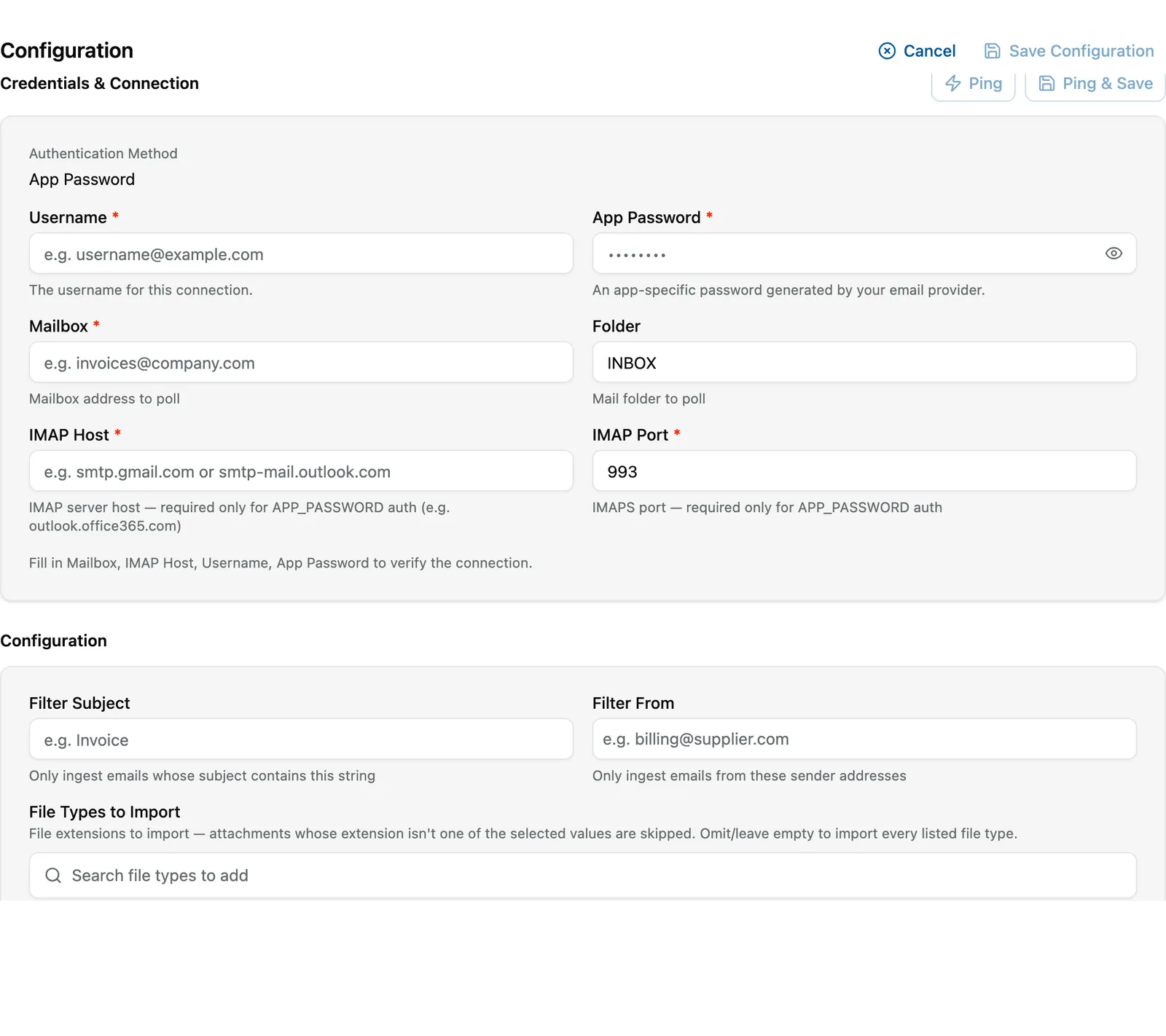
Edit mode. Ping and Ping & Save appear only here. EnlargeComplete every field marked with an asterisk in Credentials & Connection. Each field carries a hint describing exactly what it wants — for an email App Password connector that is Username, App Password, Mailbox, IMAP Host and IMAP Port.
Fill in as much of the Configuration section as you need. These are filters: leaving one blank means "do not filter on this". For email that is Filter Subject, Filter From, File Types to Import and Mark As Read.
Select Ping & Save — it tests the connection and saves in one step, which is what you want almost every time. Save Configuration saves without testing; Ping tests without saving.

Ping, Save Configuration, or Ping & Save?
Three actions, and the difference matters:
| Action | Tests the connection | Saves your changes |
|---|---|---|
| Ping | ✅ | ✗ |
| Save Configuration | ✗ | ✅ |
| Ping & Save | ✅ | ✅ |
Ping & Save is the normal choice. Reach for the others deliberately:
- Ping alone when you are still guessing at a host or port and do not want to store a value you are not confident in.
- Save Configuration alone when the system you are connecting to is temporarily unreachable and you do not want a failed test to stop you recording the details.
Only a successful test sets Engagement Status to Connected — and only a Connected connector can be enabled. Saving on its own never changes engagement.
Connectors whose sign-in method is Authenticate rather than Ping show that action instead; see Verifying a connector.
The hint under the buttons is doing you a favour
Before the required fields are filled, the form tells you what verification is still waiting on — for example "Fill in Mailbox, IMAP Host, Username, App Password to verify the connection."
That sentence is the authoritative list for the connector in front of you. If Ping is not doing anything, read it rather than guessing.
What success looks like
- The connector's Status moves from Draft to Initialised.
- After a successful test, Engagement Status reads Connected on both the Overview tab and the list.
- Re-opening Configuration shows your values instead of dashes. Secrets are never displayed back.
If something goes wrong
| Symptom | Likely cause | What to do |
|---|---|---|
| Ping and Ping & Save appear to do nothing. | A required field is still empty. | Read the hint under the buttons — it names the exact fields still needed. |
| The test fails with an authentication error. | Wrong username, or a password that is not an app-specific one. | For email, confirm with your provider that you are using an app password, not the account password. |
| The test fails but the host is definitely right. | The port, or TLS expectations. | Check IMAP Port — the hint says it wants the IMAPS port. A plain IMAP port will not connect. |
| Values you entered are gone after saving. | You used Ping rather than Ping & Save. | Ping never saves. Re-enter and use Ping & Save. |
| Status stays Draft after saving. | The save did not complete. | Look for a validation error beside a field; a required field left blank blocks the save. |
| Engagement Status stays Not Connected after a save. | You used Save Configuration, which does not test. | Select Ping to run the test. |
Next
- Verifying a connector — Ping versus Authenticate in detail.
- Schedules — how often it runs.
- Enabling and disabling — switching it on.