Handling skipped files
An import connector brings items in order. When one can never be imported, because it is empty, over the size limit or gone before Elie reached it, Elie sets it aside so the items after it keep arriving. The connector's Configuration tab then lists what it skipped.
- The IntELIEKonnect app in your top bar.
- These permissions: IntELIEKonnect · Import - List, IntELIEKonnect · Import - Update.
- An import connector that has skipped at least one file. List shows the skipped files; Update dismisses them.
If IntELIEKonnect isn't in your top bar, your role can't view it or your plan doesn't include it. Ask a workspace administrator, or see Permissions and module visibility.
Steps
Open the connector
Select the Files skipped row under Required Attention on Home, or open the connector and select Configuration. A Please note banner at the top names the latest skipped file and, if there are several, how many.
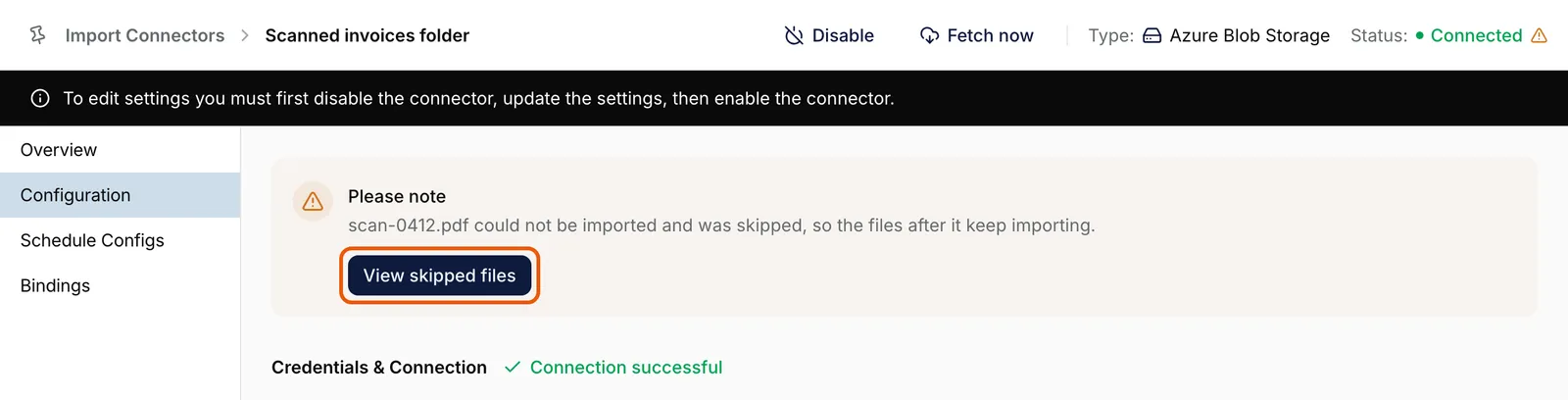
The Configuration tab of Scanned invoices folder, an Azure Blob Storage import connector. A Please note banner at the top says scan-0412.pdf could not be imported and was skipped, so the files after it keep importing, with View skipped files ringed. EnlargeOpen the list
Select View skipped files. Skipped files shows each one with its File, Reason and Skipped on date, up to 20 at a time.
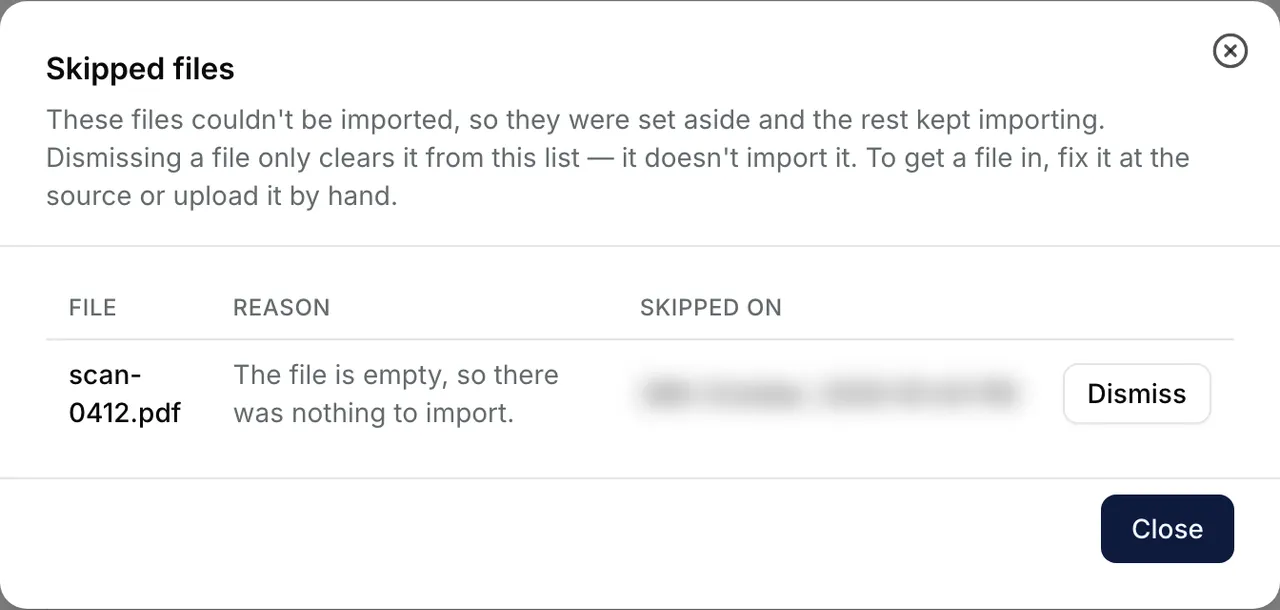
The Skipped files dialog: one row, scan-0412.pdf, with the reason The file is empty, so there was nothing to import, the date it was skipped and a Dismiss button. Close is at the bottom. Deal with the file itself
Read the Reason. Dismissing a file does not import it: to get it into Elie, fix it at the source or upload it by hand.
Dismiss it
Select Dismiss on a row, or Dismiss all and confirm, to clear the files shown. With more than 20 waiting, the next ones load once these are gone. Then select Close.


What success looks like
- The list says there are no skipped files left.
- The banner leaves Configuration, and the row leaves Required Attention.
Imports that keep failing
Two more warnings appear in the same place. Imports keep failing on Home, with a banner on Configuration saying the last few imports failed, means nothing new is coming in. It clears after the next run that completes: check the connection, then select Fetch now. On an email connector, An email is holding up this import names the email by when it arrived, says why it failed and which try this is. After its last try Elie skips it and carries on; you don't need to do anything.
If something goes wrong
| Symptom | Likely cause | What to do |
|---|---|---|
| There is no View skipped files. | Your role lacks IntELIEKonnect · Import - List. | Ask an administrator. |
| View skipped files disappeared from the banner. | You are editing the connector's configuration. | Save or cancel the edit, and it comes back. |
| The list has no Dismiss buttons. | Your role lacks IntELIEKonnect · Import - Update. | Ask an administrator. |
| Couldn't dismiss some files. Please try again. | Some dismissals failed. | Select Dismiss on the rows still listed. |
| Another warning fills the banner, with a line saying skipped files are waiting. | A connector shows one warning at a time. | Fix that problem first. View skipped files stays on the banner. |
Next
- Fetching documents now - starting a run after a fix.
- Verifying a connector - when the connection itself fails.
- IntELIEKonnect troubleshooting - other symptoms.