Managing knowledge base documents
Once a document is in a knowledge base, the Documents section is where you check what was indexed, change who can retrieve it, give a failed one another go, or take it out.
- The Knowledge Base app in your top bar.
- These permissions: Knowledge Base · Document - Read, Knowledge Base · Document - Update, Knowledge Base · Document - Delete.
- A knowledge base with documents in it. Reading needs only Read (or List); changing access and retrying need Update; removing needs Delete.
If Knowledge Base isn't in your top bar, your role can't view it or your plan doesn't include it. Ask a workspace administrator, or see Permissions and module visibility.
Steps
Find the document
On Documents, each row shows Name, with the file type and version beside it, then Source, Access, Status, Chunks and Updated. Narrow the list with Search by name or the All Status filter. Copy link on a row copies the address of the document's page.
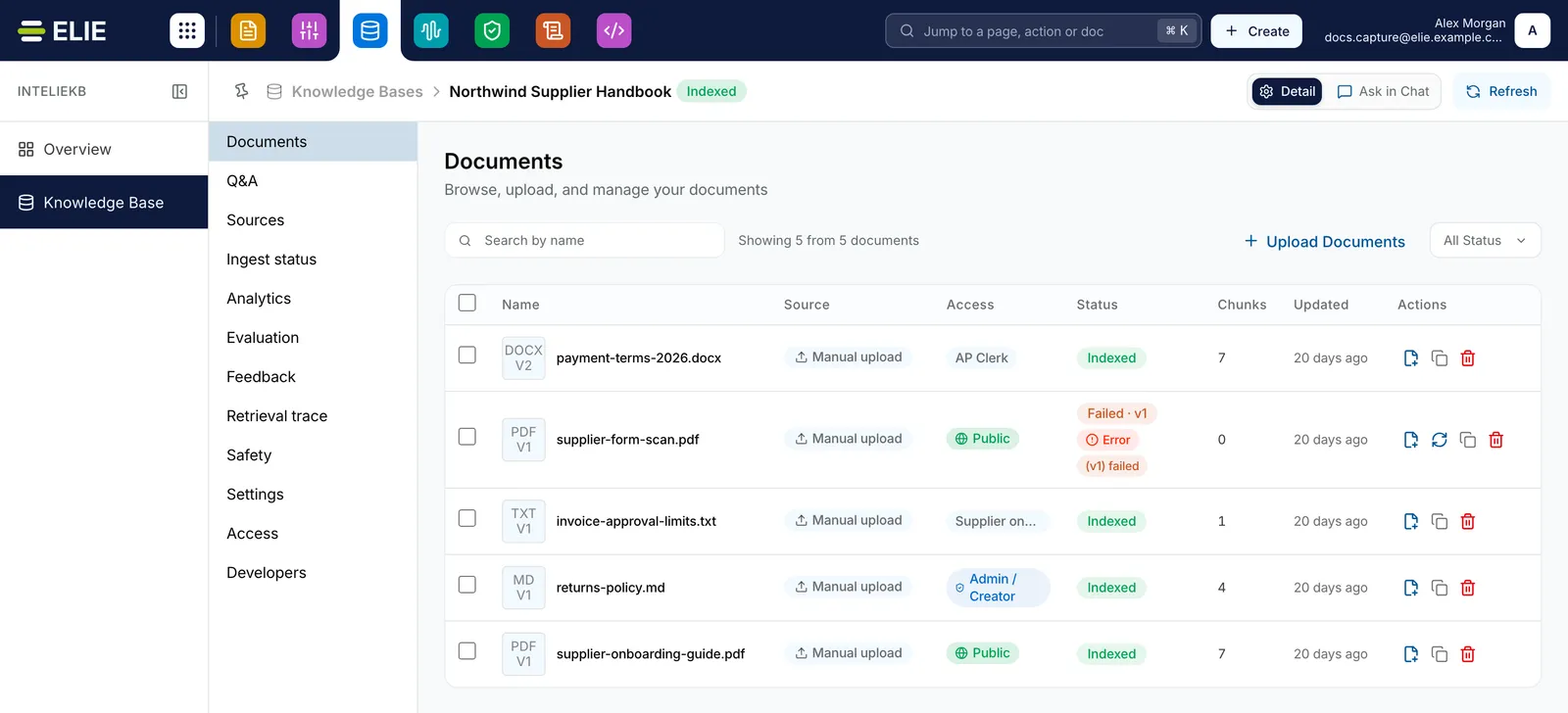
The Documents list of Northwind Supplier Handbook: payment-terms-2026.docx (V2, AP Clerk, Indexed), supplier-form-scan.pdf (Public, Failed with an Error tag), invoice-approval-limits.txt, returns-policy.md (Admin / Creator) and supplier-onboarding-guide.pdf, all Manual upload. EnlargeOpen it
Select its name. The page shows the file itself, and Chunks switches to the passages it was split into. The panel on the right gives its Status, Source, Version, Chunks, Access, Tags and Version history; Download and Close sit at the top.
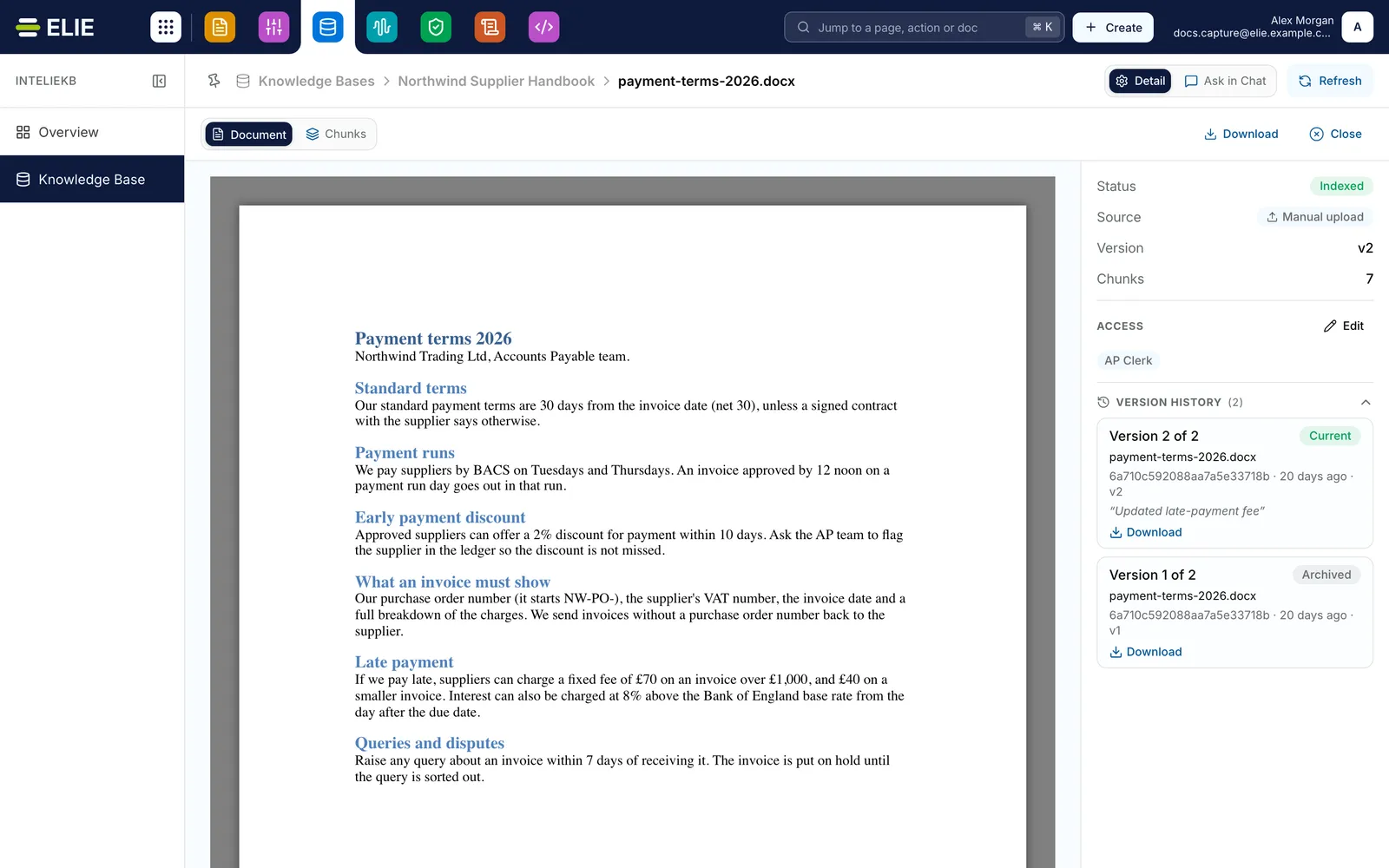
The page of payment-terms-2026.docx: the document itself on the left, and on the right its Status Indexed, Source Manual upload, Version v2, 7 chunks, Access AP Clerk and the version history. EnlargeChange who can retrieve it
Select Edit beside Access, choose Public or Internal users and its tags, then select Save. For several documents, tick their rows and select Reassign access, set the Public switch or the tags, then select Reassign. That panel starts empty and replaces each selected document’s access with what you set.
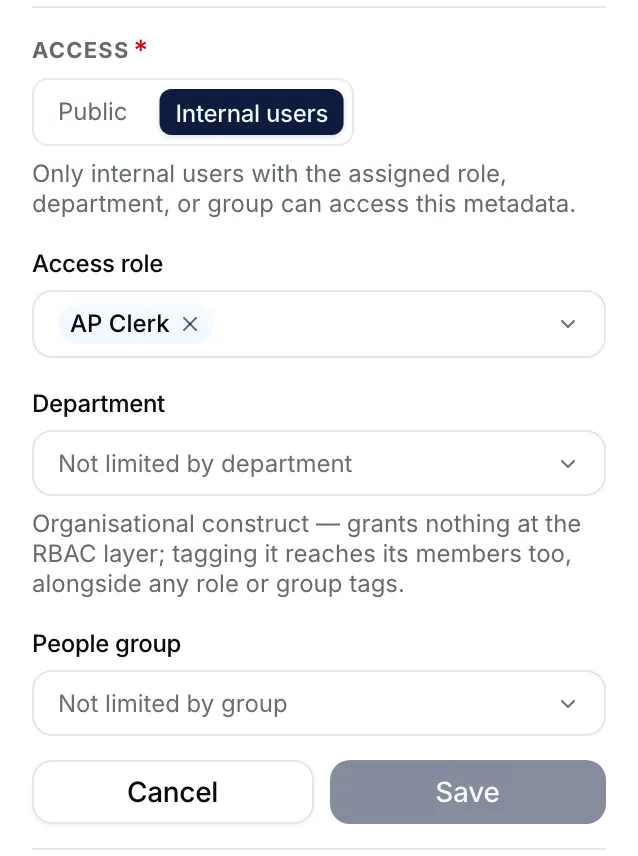
The access editor open beside a document: Public and Internal users, Internal users chosen with AP Clerk under Access role, and Cancel and Save. Retry a failure
On a Failed row, select Retry (the circular arrow), or Retry indexing on the document’s page. Each document allows five manual retries; after that both are greyed out, and the page reads Retry limit reached (5/5).
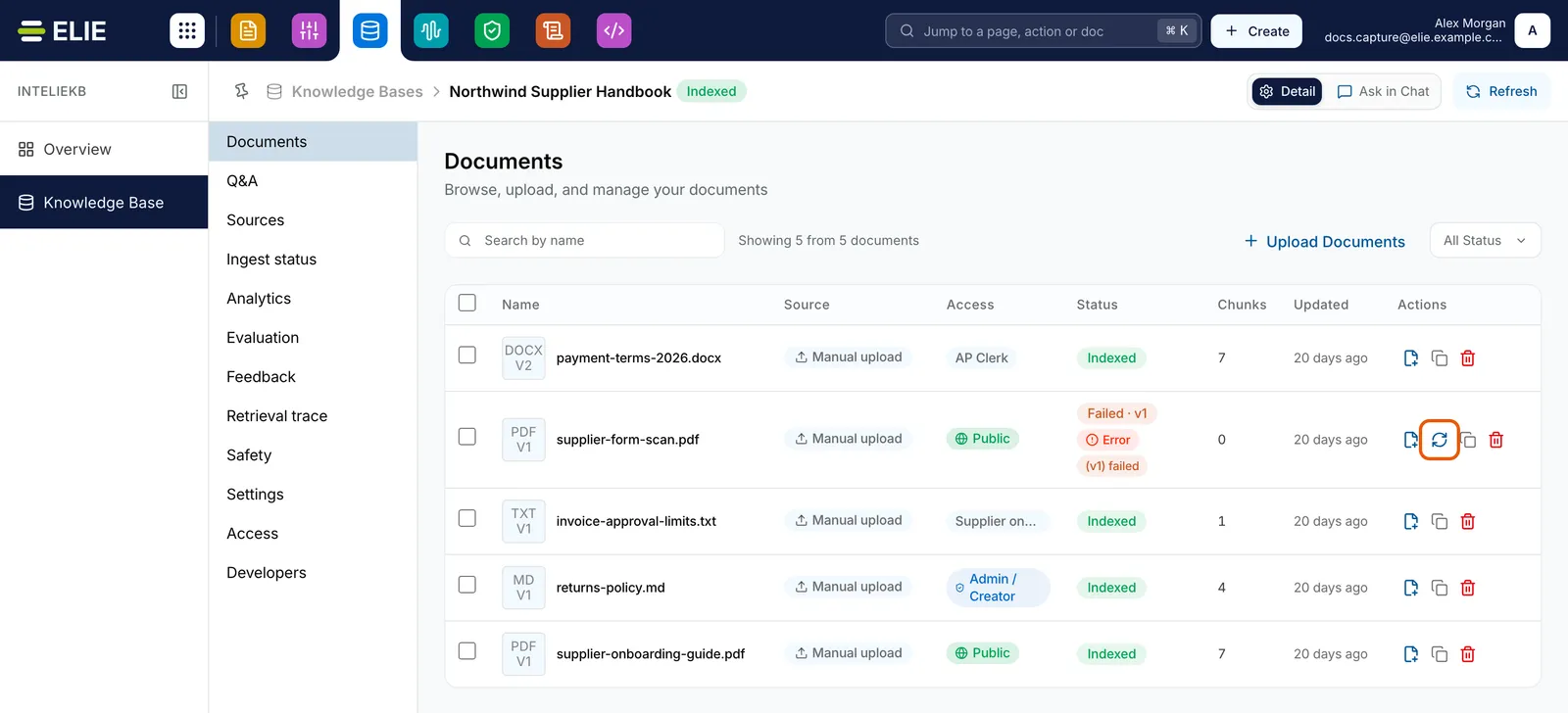
The Documents list with the Retry button, a circular arrow, ringed on the Failed row of supplier-form-scan.pdf. EnlargeRemove it
Select Remove (the bin) on its row, then Remove in the Remove document dialog. For several, tick their rows and select Remove selected. The row shows Deleting, then leaves the list.
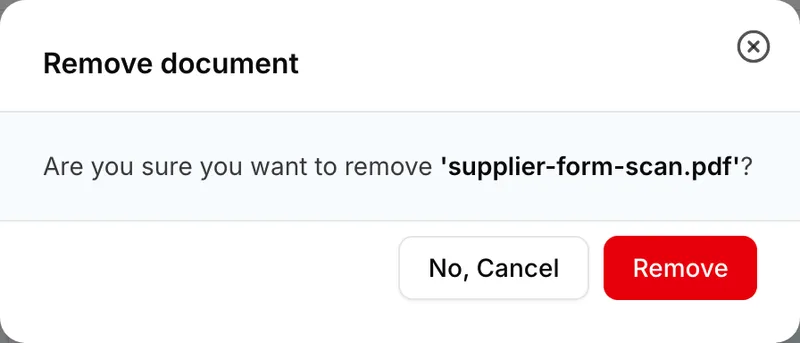
The Remove document dialog asking whether to remove supplier-form-scan.pdf, with No, Cancel and Remove.


What success looks like
- Access reassigned for 1 document(s). appears, with the number you changed, and the Access column shows the new tags or Public.
- Retry started. appears and the status moves back to Queued.
- Document removal started. appears, followed by Document removed successfully once the removal finishes.
Versions
Version history lists every version, newest first, as Version 2 of 2 and so on, with its file name, when it was uploaded, its What changed? note and a Download link. Each carries a state:

| State | What it means |
|---|---|
| Current | The version that answers questions. |
| Processing | A new version still being indexed. The current one keeps answering. |
| Archived | An earlier version, kept for the record. |
| Failed | A new version that could not be indexed. Answers still come from the previous one. |
Removing takes it out of answers, not out of storage
Removing a document takes it out of the index, so it stops appearing in answers and in the list. The uploaded file itself is kept. To make it answerable again, upload it again. Tick Deleted in All Status to see removed documents.
If something goes wrong
| Symptom | Likely cause | What to do |
|---|---|---|
| Edit is missing, or Retry or Reassign access is greyed out. | Your role lacks Knowledge Base · Document - Update. | Ask a workspace administrator. |
| Remove is greyed out, with You don't have permission to remove this document. | Your role lacks Knowledge Base · Document - Delete. | Ask a workspace administrator. |
| Remove is greyed out with no reason, and the row cannot be ticked. | The document is already being removed. | Wait for the row to leave the list. |
| Retry limit reached (5/5), or the same failure again after a retry. | The file itself cannot be read, which no retry fixes. | Hover the Error tag, fix the file, then remove the document and upload the fixed file. |
| The page reads Preview not available for this file type. | The browser cannot show that format. | Use Chunks to read what was indexed, or Download. |
Next
- Uploading documents to a knowledge base - adding files and new versions.
- Ingest statuses explained - what the Error tag and each status mean.
- Who can see a knowledge base - how document access combines with knowledge base access.