Building a golden set
A golden set is a list of questions whose answers you already know. An evaluation asks the knowledge base each one and scores what comes back, so the set is worth building with care: questions people really ask, in the words they use.
- The Knowledge Base app in your top bar.
- These permissions: Knowledge Base · Analytics - Create, Knowledge Base · Analytics - Update.
- A knowledge base with indexed documents. Adding a set needs Create; changing one needs Update.
If Knowledge Base isn't in your top bar, your role can't view it or your plan doesn't include it. Ask a workspace administrator, or see Permissions and module visibility.
Steps
Start a set
Open the knowledge base and select Evaluation. On the Golden set card, select Add golden set, and give it a Name you will recognise when you run an evaluation.
Write an item
Under Items, write the Question the way someone would ask it in chat. Add the Expected answer, the Expected documents an ideal answer should cite, and comma-separated Tags if you want them; only the question is required.
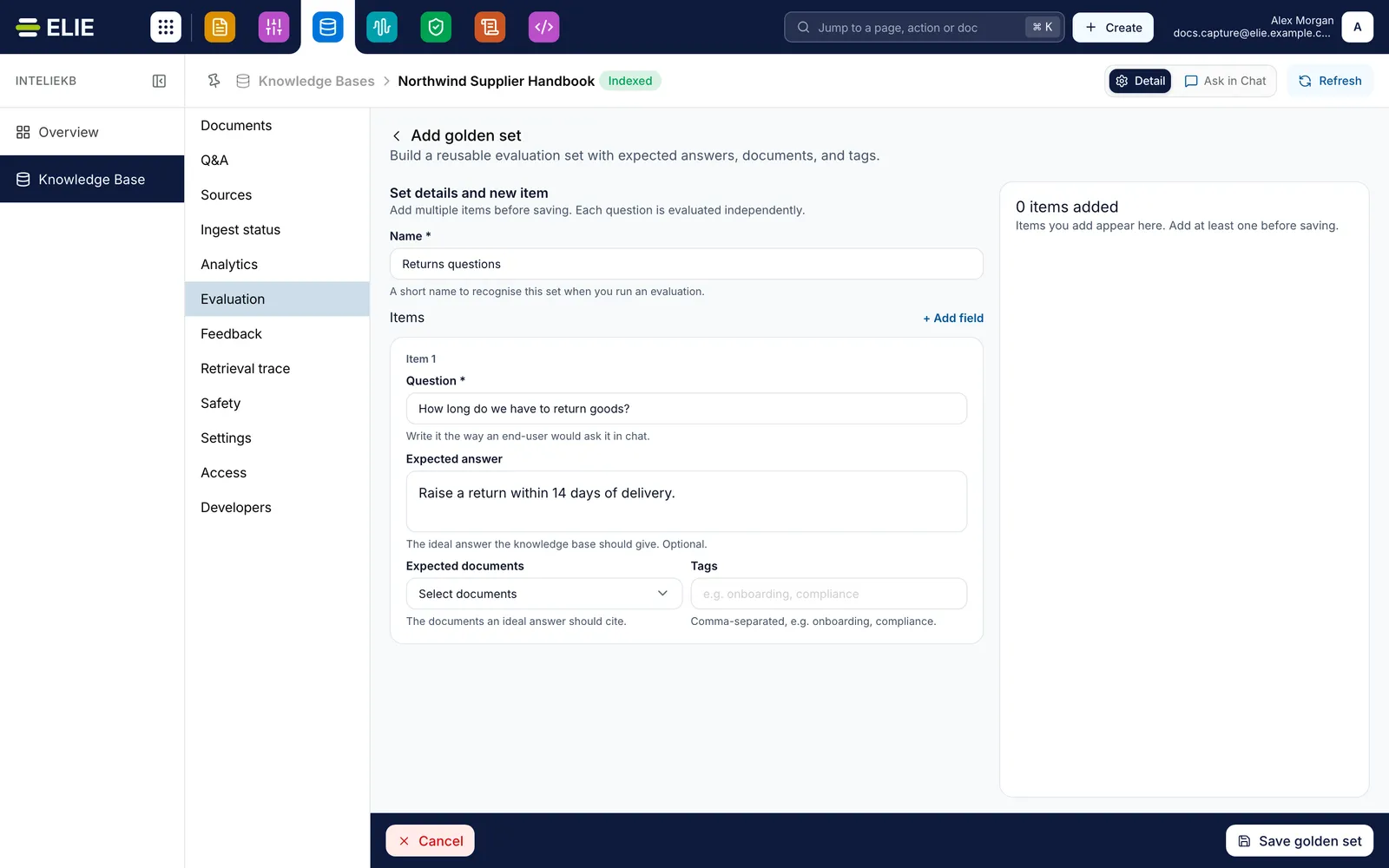
The Add golden set page with the Name Returns questions and Item 1 filled in: the question How long do we have to return goods? and its expected answer, + Add field above it, and 0 items added on the right, above Cancel and Save golden set. EnlargeAdd it to the set
Select + Add field. The item moves to Items added on the right and the editor clears for the next one. Expand an item there to edit or remove it.
Save
Select Save golden set. A question still in the editor is saved with the rest. To change a set later, select its name on the Golden set card, then Save changes.

What success looks like
- Golden set created successfully! appears and the set is listed on the Golden set card with its number of Items.
- The Golden set figure on Evaluation counts the pairs across your sets.
- Run evaluation is no longer greyed out.
Importing a golden set
Import, on the same card, opens Import Golden Set. Add a .csv, .xlsx or .xls file of
up to 100 MB whose header row names a question column. answer, tags and document_name are
optional; name several documents in one cell with ; and they are matched to this knowledge
base's documents by file name. A row without a question is left out, and a question repeated in
the file is kept once.

The items appear on the right, where you can expand one to change it. If the file names no documents, Add expected Documents applies the documents you pick to every item. Select Import 4 items, with your count. The set takes its name from the file.
If something goes wrong
| Symptom | Likely cause | What to do |
|---|---|---|
| The set won't save, with Give the golden set a name. | Name is empty. | Add a name. |
| An item asks you to add a question. | It has an answer, documents or tags but no Question. | Add the question, or clear the item. |
| An expected document reads Not in this knowledge base, or Not found: and its name on import. | It was removed, has a different file name, or is outside the first 200 documents offered. | Remove it and pick another. |
| Add golden set or Import is greyed out. | Your role lacks Knowledge Base · Analytics - Create. | Ask a workspace administrator. |
Next
- Running an evaluation - scoring the knowledge base against your set.
- Knowledge base analytics - questions people really ask, to add to the set.
- Curated question and answer pairs - when the answer should be fixed, not scored.