Publishing a price
A price is a window of time. Publishing one starts on the date you choose and runs until a newer one replaces it; nothing already charged is touched. Each product has three kinds of price: a Component daily base, a Resource daily base for each resource type, and a Meter usage price for each meter.
- Access to Billing in the staff console.
- These permissions: billing.rate.read, billing.rate.manage.
- The meter or resource type, registered in the Registry.
If an area or a button is missing, your staff role does not include it. Ask a platform administrator to extend your access.
Steps
Open Rates
In Billing, select Rates under Setup. Products lists each component with its Daily base, Meter coverage, Parked work and Scheduled changes.
Open the product
Select the product’s row. Its page has Component daily base, Resource daily base and Meter usage.
Start the price
Under Meter usage, select Set price on a meter whose badge starts Not priced (or Change price on one that has a price).
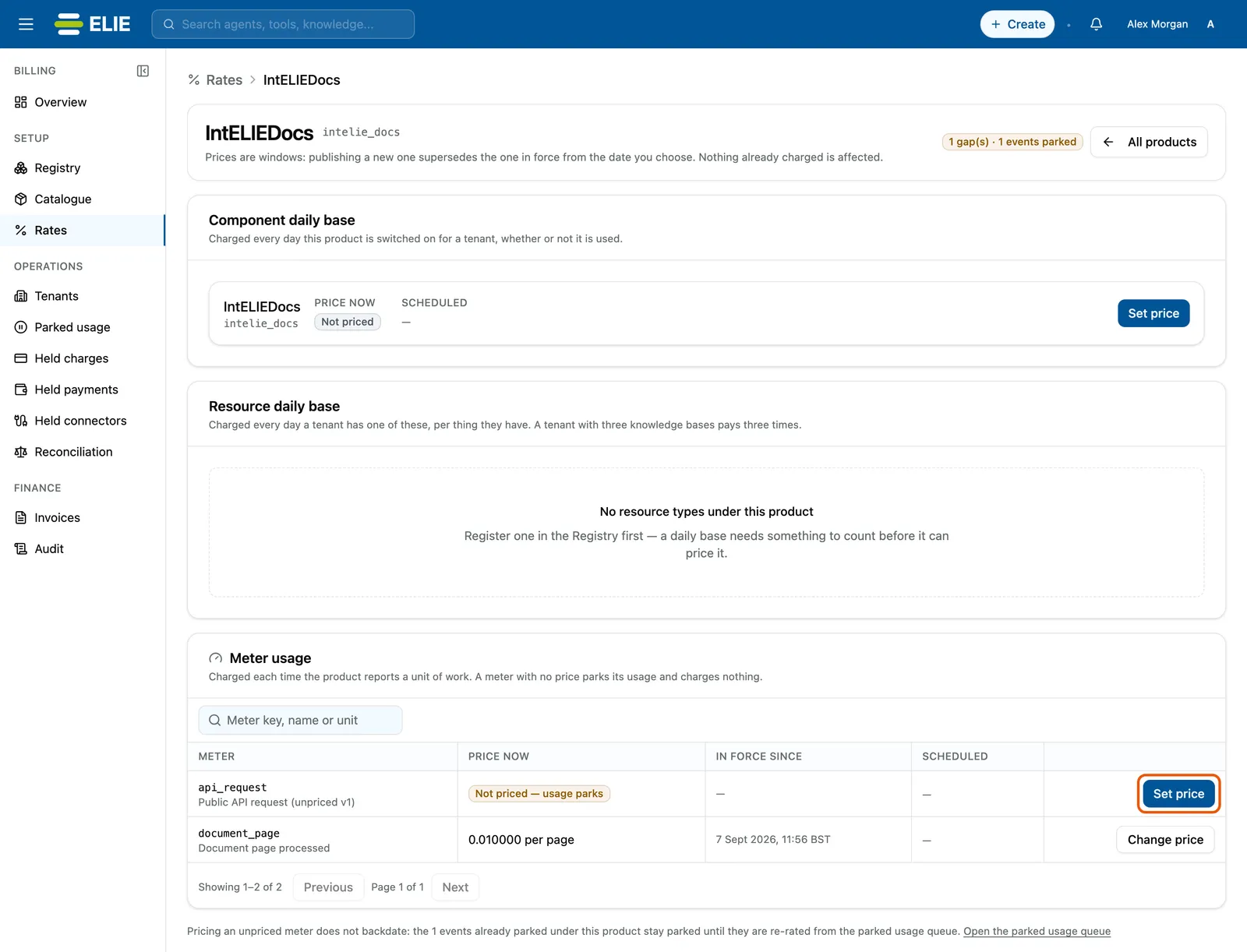
The IntELIEDocs product page under Rates: Component daily base not priced, no resource types, and under Meter usage api_request reading Not priced, usage parks, with its Set price ringed, above document_page at 0.010000 per page. EnlargeSet amount and start
Enter the amount, up to six decimal places, in the field named after the meter’s unit, such as Credits per page. Choose when it Starts, in your own time zone and in the future; In a couple of minutes, Tomorrow and 1st of next month fill it in. Type a Reason.
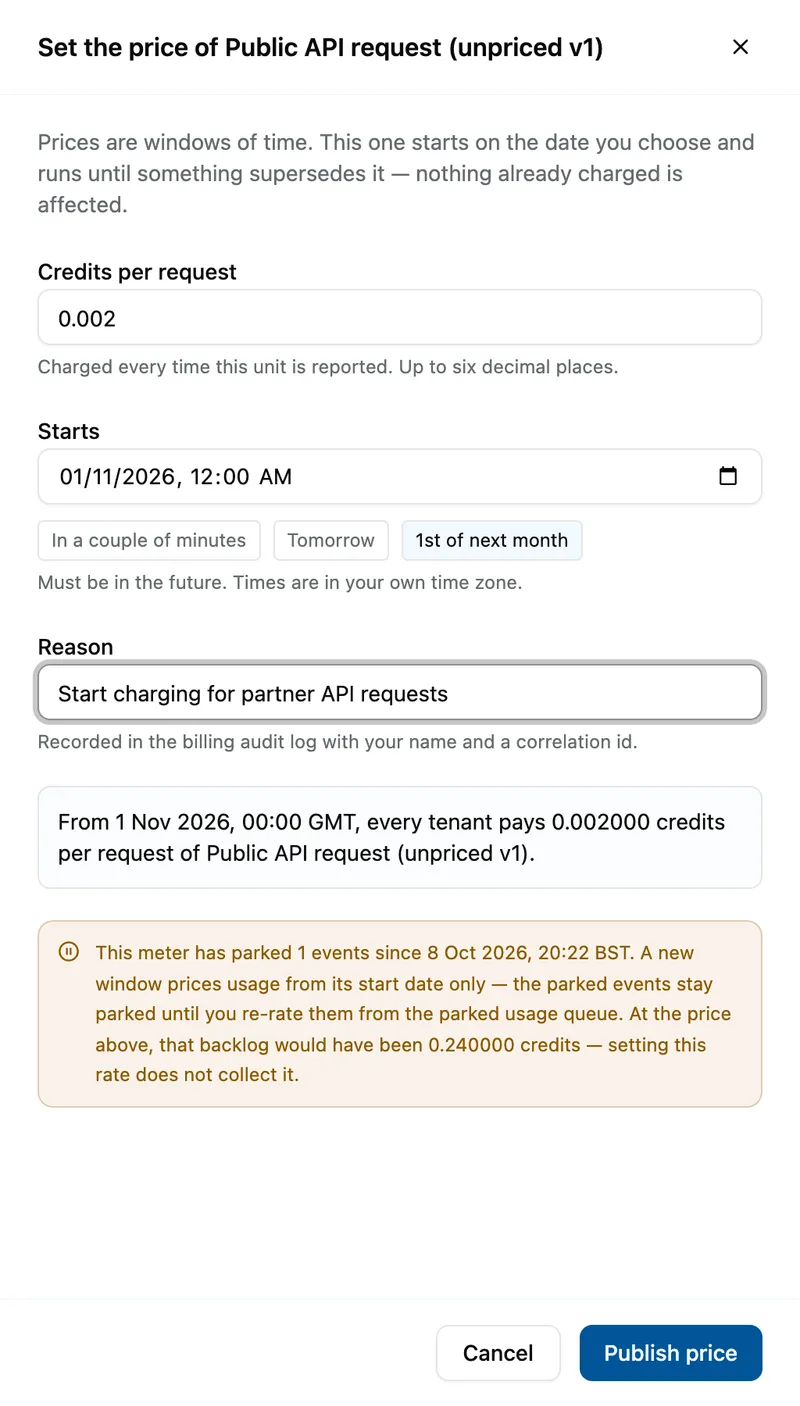
The price drawer for Public API request: Credits per request 0.002, Starts on the 1st of next month, a reason, the summary that every tenant pays 0.002000 credits per request from that date, and a warning that the requests already parked stay parked. Publish
Read the summary of who pays what from when, then select Publish price (or Change price).


What success looks like
- Price published appears, or for a change, Price changed. The previous window now ends where this one starts.
- Until the start date the meter shows a Scheduled badge with the new amount and date; then Price now shows it, with In force since.
- Rates counts one more meter as Priced.
Daily bases are set in Credits per month and charged per day: the component's daily base for every day the product is switched on for a tenant, and a resource daily base per thing the tenant has, so three knowledge bases pay three times.
Scheduled prices and overrides
A price that has not started yet can be corrected with Edit scheduled. Once it starts, change it by publishing another window.
To give one tenant its own price, open the tenant under Billing, then Tenants, select Rate overrides and open the product. Each line shows the Platform default beside This tenant; select Add override, fill the same fields and select Publish override. Every other tenant keeps the default.
Publishing a price does not collect usage that parked before it. Release that from Parked usage.
If something goes wrong
| Symptom | Likely cause | What to do |
|---|---|---|
| Enter a number of credits, up to six decimal places. | The amount has more decimals or is not a number. | Correct it. |
| The price is refused for its start time. | Starts is in the past. | Pick a future time. |
| Usage still parks after publishing. | The window has not started yet. | Wait for the start, or check Scheduled. |
Next
- Clearing held charges and parked usage - releasing parked work once priced.
- Registering components, meters and resource types - adding a meter first.
- Managing a tenant's billing account - one tenant's prices and usage.