The permission catalogue
Every permission a tenant administrator can put in a role comes from one platform-wide list:
the permission catalogue. Each key reads component.resource.verb, such as
intelie_konnect.connector.create. The components in it are also what you can grant a tenant
as an entitlement.
- Access to Permissions in the staff console.
- This permission: billing.plan.manage.
- A staff sign-in. Browsing and removing need nothing more; creating and editing are refused without the permission above, although the buttons show for everyone.
If an area or a button is missing, your staff role does not include it. Ask a platform administrator to extend your access.
Steps
Open the catalogue
Select Permissions in the Available Apps panel. The page is headed Permission catalogue, with counts of permissions, components and resources.
Find the gap
In Matrix view, pick a component from the Component chips. Rows are resources and columns are verbs; an empty cell is a permission that does not exist, and a highlighted one is a likely gap because sibling resources have it.
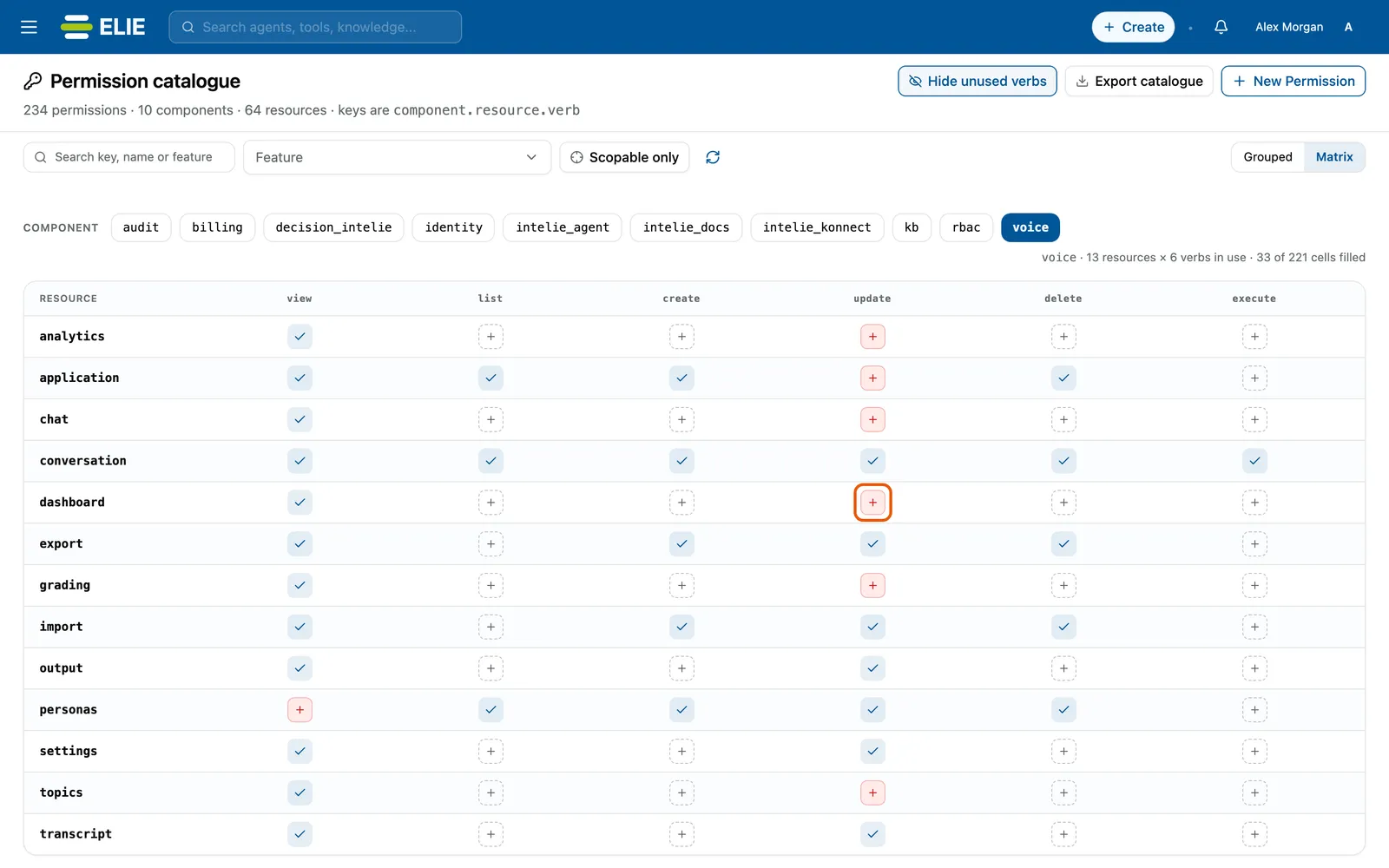
The permission catalogue in Matrix view for the voice component: resources down the side, the verbs view, list, create, update, delete and execute across, ticks where a permission exists, and the highlighted likely-gap cell for dashboard update ringed. EnlargeStart the permission
Select the empty cell, which fills in the component, resource and verb for you, or select New Permission and type Component and Resource yourself.
Pick verbs and describe it
Tick one or more Verbs from the fixed list; verbs that already exist are greyed out. Enter a Display Name, and optionally a Description and Feature. Turn on Scopable only when the permission can be limited to individual records, then name their type in Scope Resource Type.
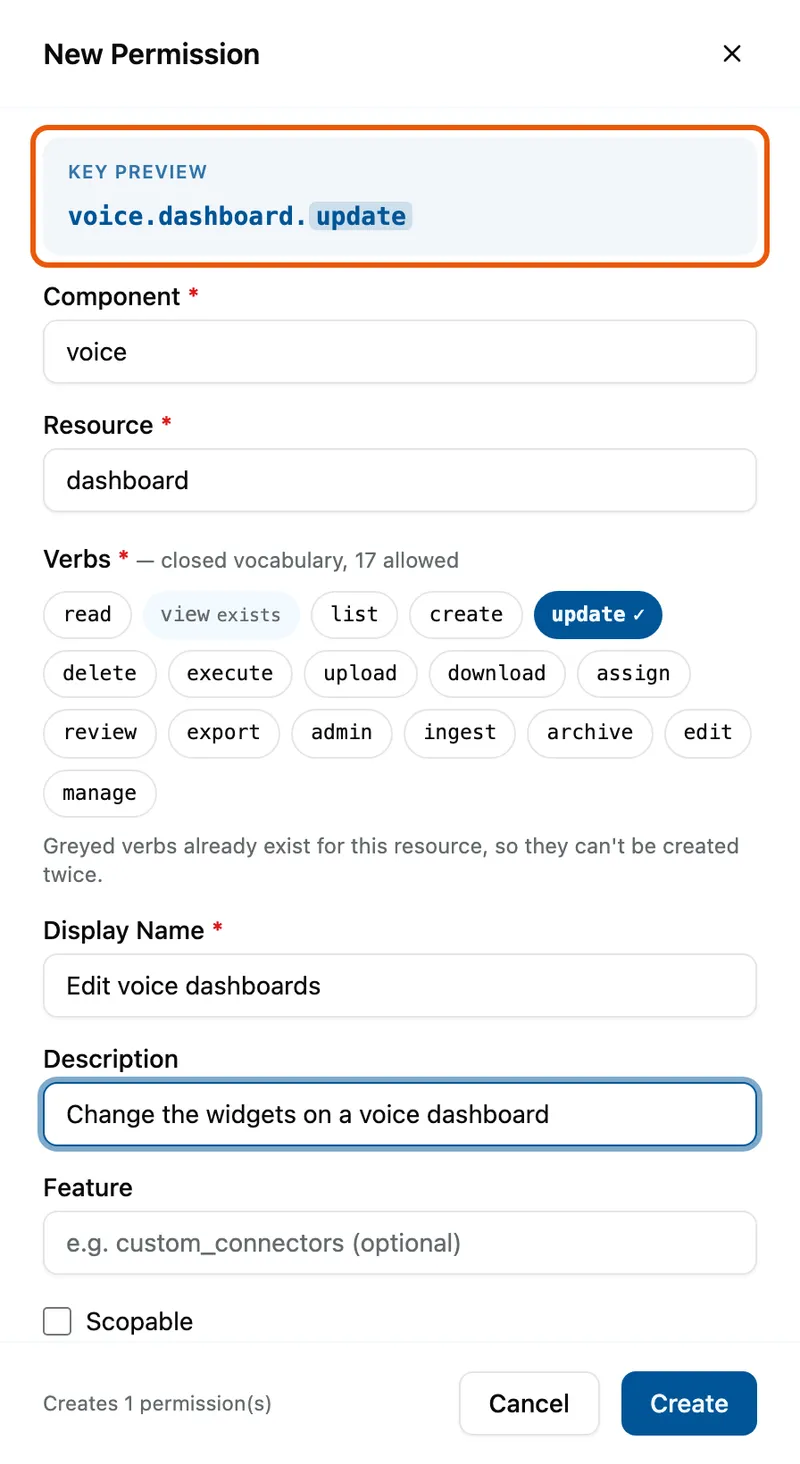
The New Permission drawer opened from that cell, with the Key preview voice.dashboard.update ringed, Component voice, Resource dashboard, the update verb selected and view greyed out as existing, and Display Name Edit voice dashboards. Create
Check Key preview, which shows every key about to be made, then select Create.


What success looks like
- 1 permission(s) created successfully! appears, with the count of keys made.
- The cell in the matrix fills in, and the key appears in Grouped view.
- If only some verbs succeed, the drawer stays open listing each verb's result, so you can retry the rest.
Editing, removing and exporting
Select a filled cell, or Edit in Grouped view, to open Edit Permission. Component, resource and verb are fixed; Display Name, Description, Feature, Scopable and Scope Resource Type can change, then Save Changes.
Remove asks you to confirm with Yes, Remove in Remove Permission. The platform refuses while any tenant user holds the permission, or while another permission lists it under REQUIRES (the permissions a holder also needs).
Grouped view is a table of KEY, DISPLAY NAME, FEATURE, SCOPABLE and REQUIRES, with Sort By. In either view, Search key, name or feature, Feature and Scopable only narrow the list, and Export catalogue downloads what they match as a CSV.
If something goes wrong
| Symptom | Likely cause | What to do |
|---|---|---|
| Creating or saving fails straight away. | Your staff account lacks billing.plan.manage. | Ask a platform administrator for it. |
| Fill in component, resource, at least one verb, and display name. | A required field is empty. | Complete them; Create stays greyed out until you do. |
| A verb you want is greyed out. | That permission already exists for this resource. | Edit the existing one instead. |
| Removing a permission fails. | A tenant user holds it, or another permission requires it. | Take it out of the tenants' roles, or remove the dependent permission first. |
| A column you expect is missing from Matrix. | Hide unused verbs is on. | Turn it off to see the whole vocabulary. |
Next
- Granting a tenant an entitlement - components from this catalogue.
- Managing roles - how tenant administrators use these permissions.