Redacting personal details
Redaction masks personal details, such as names, phone numbers and card numbers, before any AI step reads the transcript, and the redacted transcript becomes the one everyone sees. What gets masked is decided by a Smart Redact in IntELIEDocs, which the application links to.
- The Voice IntELIEgence app in your top bar.
- These permissions: Voice · Settings - Update, IntELIEDocs · SmartRedact - List.
- A published, enabled Smart Redact in IntELIEDocs with at least one entity type, custom pattern or custom entity type.
If Voice IntELIEgence isn't in your top bar, your role can't view it or your plan doesn't include it. Ask a workspace administrator, or see Permissions and module visibility.
Steps
Open Redaction (PII)
Open the application's Settings, then Redaction (PII), and turn on Enable PII redaction.
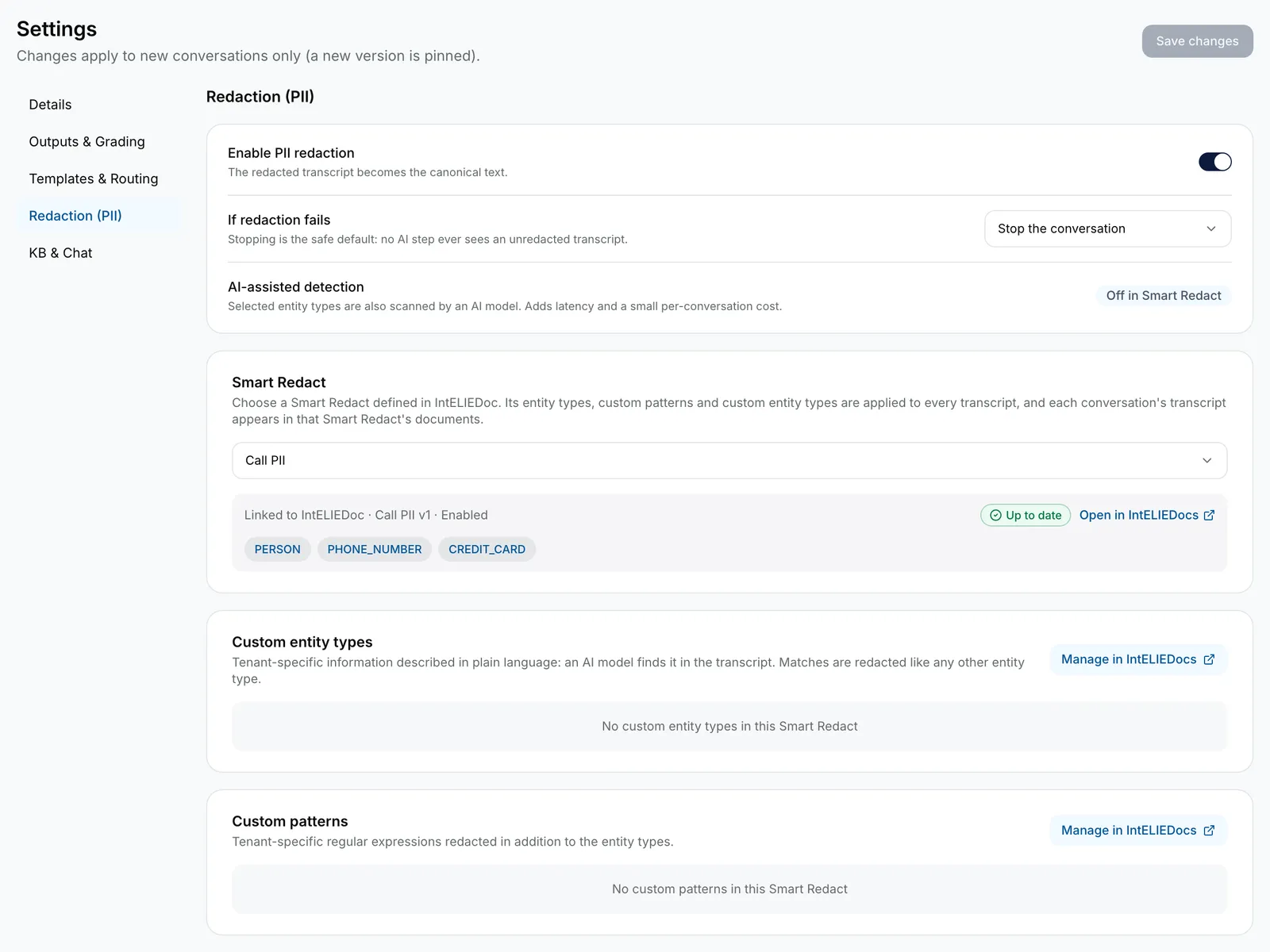
Settings open on Redaction (PII) with Enable PII redaction on, If redaction fails set to Stop the conversation, and the Smart Redact card for Call PII listing PERSON, PHONE_NUMBER and CREDIT_CARD, above its custom entity types and custom patterns. EnlargePick the Smart Redact
Under Smart Redact, open Select a Smart Redact and pick one. Each shows its version and how many entity types and custom patterns it has. One that is a draft, disabled or detects no text is listed but cannot be picked.
Check what it masks
The card shows the link, as in Linked to IntELIEDoc · Call PII v1, with its entity types, then its Custom entity types and Custom patterns. AI-assisted detection shows whether the Smart Redact also uses an AI model. To change any of it, select Open in IntELIEDocs.
Decide what happens if it fails
Under If redaction fails, Stop the conversation is the safe default: no AI step ever sees unredacted text. Continue unredacted carries on with the original transcript; saving it asks Continue unredacted when redaction fails?, and you confirm with Keep continue unredacted.
Save
Select Save changes at the top. It applies to conversations that arrive from now on.

What success looks like
- Settings saved. Applies to new conversations. appears, and the card reads Up to date.
- On new conversations, masked text sits on a grey background in the transcript, and Redaction under the Details tab reads Redacted.

When the Smart Redact changes
The link pins the version you picked. If someone edits the Smart Redact in IntELIEDocs, the card says it was updated since it was linked; pick it again to take the new version. If it is deleted or disabled there, a banner across the application says so, with Go to Redaction settings. An application set up before Smart Redact was linked keeps its built-in settings, and the section says so until you pick a Smart Redact to replace them.
If something goes wrong
| Symptom | Likely cause | What to do |
|---|---|---|
| Enable PII redaction is greyed out, with a note about IntELIEDocs. | Your role cannot list Smart Redacts, or your plan does not include them. | Ask an administrator. |
| Pick a Smart Redact to turn redaction on. | Redaction is on with nothing picked. | Pick one, or turn redaction off. |
| The list reads No Smart Redacts found in IntELIEDoc. | None exist, or none are shared with you. | Create one. See Smart Redact. |
| A banner says the Smart Redact was not found or is disabled. | It was deleted or switched off in IntELIEDocs. | Select Go to Redaction settings and pick another, or enable it again there. |
| New conversations stop at Exception at PII redact. | Redaction failed, and the application stops the conversation when it does. | Hover the badge for the reason. See Conversation statuses. |
Next
- Voice application settings - the other sections.
- Smart Redact - building the redactor itself.
- Reviewing a conversation - redacted text in the transcript.