Reviewing a conversation
Reviewing is where a person checks what Elie made of a call before it counts. You read the transcript, fix who said what, correct the summary and action items, and approve it. Approving locks the conversation, so do it last.
- The Voice IntELIEgence app in your top bar.
- These permissions: Voice · Conversation - View, Voice · Transcript - View, Voice · Output - View.
- A conversation that has finished processing. Correcting speakers needs Voice · Transcript - Update, editing outputs Voice · Output - Update, approving Voice · Conversation - Update, and Flag & Retry Voice · Conversation - Execute.
If Voice IntELIEgence isn't in your top bar, your role can't view it or your plan doesn't include it. Ask a workspace administrator, or see Permissions and module visibility.
Steps
Open the conversation
On Conversations, select the conversation's name. The header shows its status, sentiment and number of turns, with the Pipeline stages beneath. The arrows beside the counter, as in 3 of 20, step through the list you came from, across every page.
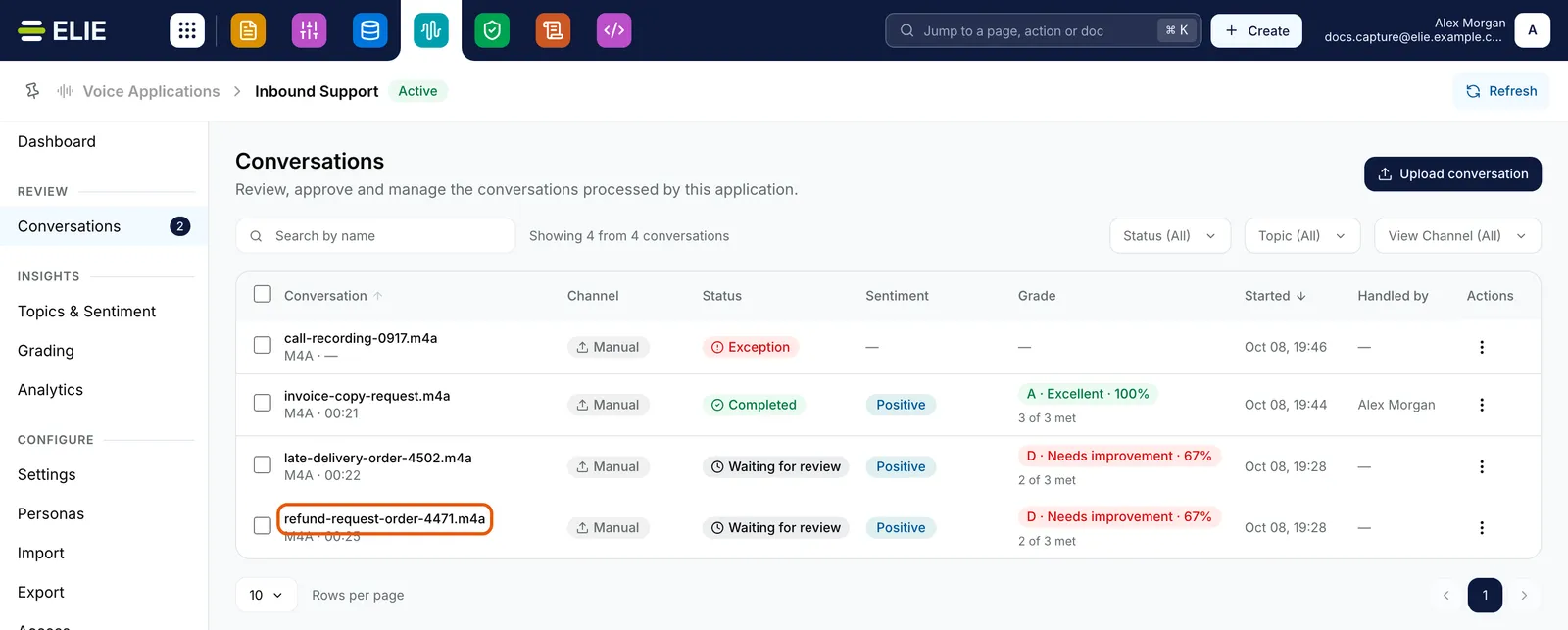
The Conversations list of Inbound Support with refund-request-order-4471.m4a ringed. EnlargeRead the transcript
The transcript is on the left, under the recording's player. Select a line to jump the audio to it, or type into Search transcript to find a word. Redacted text sits on a grey background, and a dotted underline marks words transcribed with low confidence; point at either for a label.
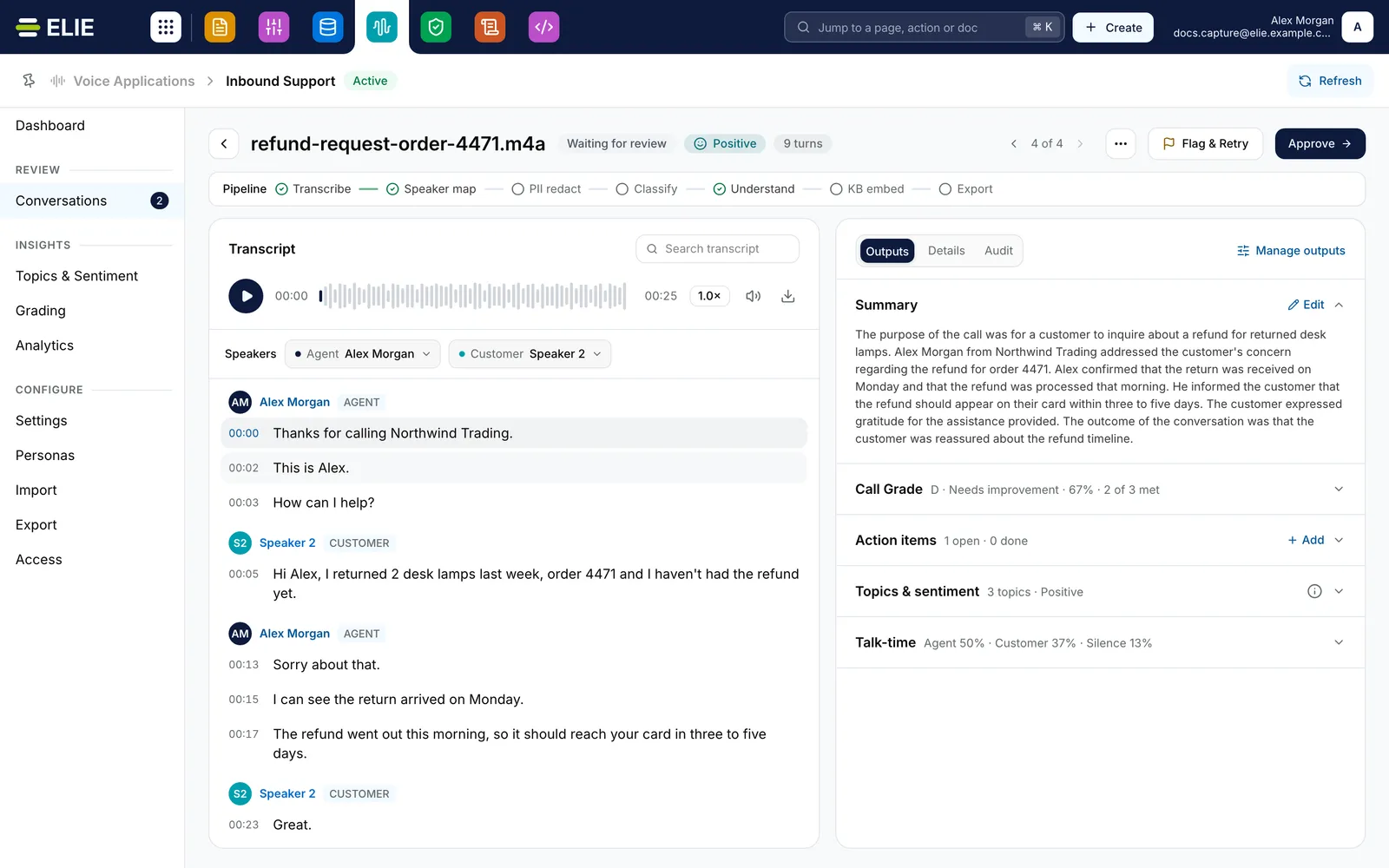
refund-request-order-4471.m4a with Waiting for review, Positive and 9 turns in the header, 4 of 4 beside Flag & Retry and Approve, the Pipeline row, the transcript on the left under the recording's player and the Speakers chips for Alex Morgan and Speaker 2, and the Outputs tab on the right. EnlargeCorrect the speakers
Speakers has a chip for each speaker, marked Agent or Customer. Select one to type a name, or Set as agent if the wrong speaker is the agent, then Save speakers. On the agent's chip, Assign agent lists enrolled voices; picking one asks Assign this speaker? and saves with Assign.
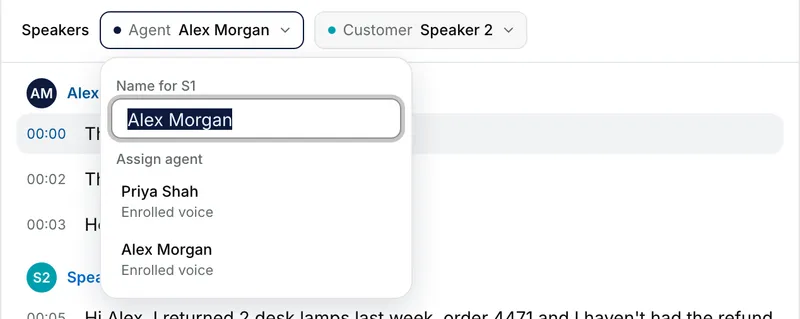
The Speakers row above the transcript with the Agent chip for Alex Morgan open, showing Name for S1 and, under Assign agent, the enrolled voices Priya Shah and Alex Morgan. Correct the outputs
On Outputs, select an output's title to open it. Tick an action item to mark it done; that saves at once. Edit on the summary, Add on action items and removing one are held back: select the button that counts them, as in Sync changes (2), then Confirm in Sync these changes?. Revert all throws them away.
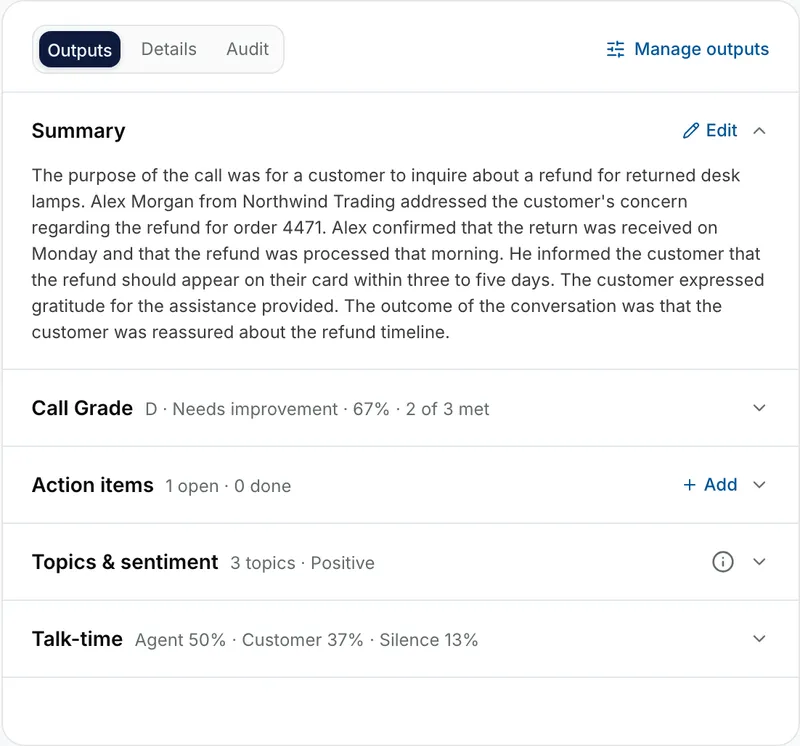
The Outputs tab with the call's summary open, and Call Grade (D, Needs improvement, 67%, 2 of 3 met), Action items, Topics & sentiment and Talk-time each closed to one line. Send it back if something is wrong
Select Flag & Retry, then Classification to fix the class, Speaker map to pick the right agent, or Re-sync to process it all again. The first two appear only when the application classifies calls or has enrolled agents. Select Flag & retry, and it runs again from that point.
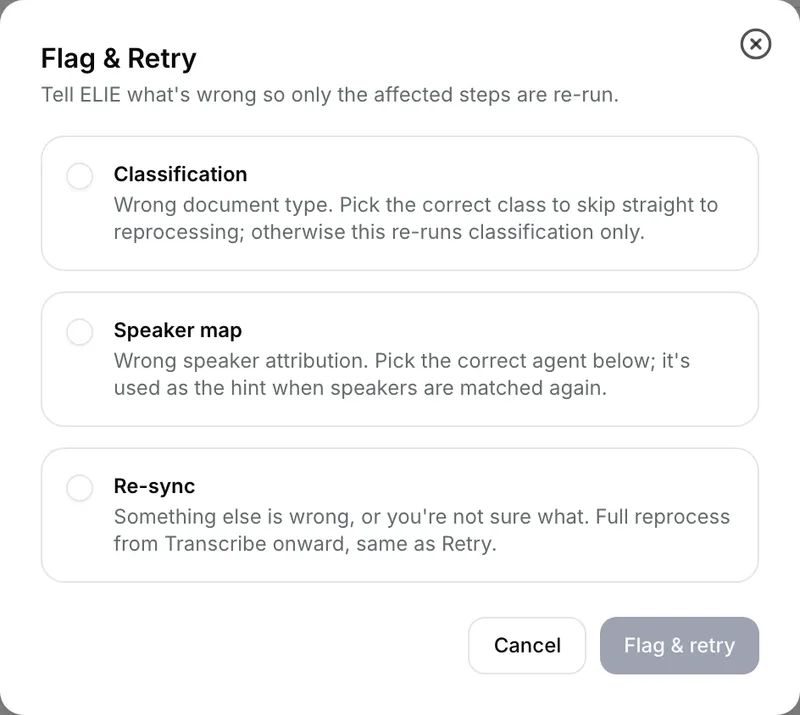
The Flag & Retry dialog offering Classification, Speaker map and Re-sync, with Cancel and Flag & retry. Approve it
Select Approve & Next to approve and move to the next conversation, or Approve on the last one, and confirm in Approve this conversation?.
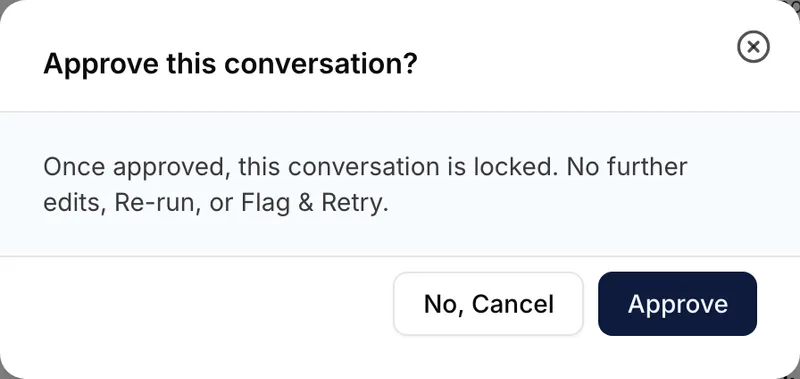
The Approve this conversation? dialog saying an approved conversation is locked against edits, Re-run and Flag & Retry, with No, Cancel and Approve & Next.


What success looks like
- Approved. appears, the status reads Completed and Approved replaces the button.
- The transcript reads Approved by your name, and outputs and speakers can no longer be edited.
- Edits you synced show under the Audit tab, with who made them and when.
Details, Audit and the header menu
Details lists the channel, duration, identifiers and pinned version, and a Processing table with each stage's status, duration and finish time. Re-run there processes a failed conversation again, and Resume continues a stalled one. Audit records every change to outputs and speakers; filter it with All changes. The three dots in the header offer Download audio, Copy conversation ID, Ask about this conversation, Re-run pipeline and Remove conversation…. A failed conversation shows Retry where Flag & Retry was.

When the recording itself could not be transcribed, the transcript says so, with the stage that failed and an error code:

If something goes wrong
| Symptom | Likely cause | What to do |
|---|---|---|
| The transcript reads Transcription failed. | The recording could not be transcribed. | Read the reason, then select Retry once it is fixed. |
| Processing. Editing will be available once this conversation finishes processing. | The conversation is still running. | Wait for it to finish. |
| Assign agent reads No enrolled agents to match. | Speaker identification is off, or no agent is enrolled. | See Managing personas. Typing a name still works. |
| Pick which speaker is the agent before saving. | No chip is set as the agent. | Select Set as agent on one. |
| A red banner starts Attention. | The grade is below 60, the customer escalated, or a turn was flagged. | Review it carefully before approving. |
Next
- Conversation statuses - what each badge means.
- Managing personas - naming agents automatically.
- Grading conversations - the Call Grade card on Outputs.